You’ve downloaded the DIRECTV app, logged into your account, and want to cast your favorite show to the big screen, only to find the screen goes black when you try to mirror. Many users attempting to screen mirror on DIRECTV run into the same frustrating roadblock. The core issue isn’t your Wi-Fi or device compatibility. It’s digital rights management. DIRECTV STREAM enforces strict content protection that prevents screen mirroring, even on private home networks.
While native screen mirroring isn’t supported, this guide will show you proven workarounds to view DIRECTV content on your TV. You’ll learn how to use alternative channel apps, leverage third-party tools, and set up wired connections for reliable playback.
Why DIRECTV App Blocks Screen Mirroring
The DIRECTV app does not support screen mirroring through AirPlay, Google Cast, or Miracast. This is a deliberate restriction, not a bug. Whether you’re using an iPhone, Android phone, or tablet, attempting to mirror the screen while the app is open will result in a black video screen, audio-only playback, or error messages.
DRM Protection Causes the Block
DIRECTV STREAM blocks screen mirroring to comply with content licensing agreements. Networks that supply channels require strong DRM protections to prevent unauthorized redistribution. The app detects when it’s being cast or mirrored and disables video output accordingly. This restriction applies to the DIRECTV STREAM app on iOS and Android, the web version at stream.directv.com, and any attempt to mirror the app interface.
The blocking is due to content protection, not technical flaws. Even if your TV or streaming device supports casting natively, the DIRECTV app overrides the connection to protect copyrighted content.
DIRECTV STREAM Box Can’t Receive Mirroring
The DIRECTV STREAM box cannot act as a receiver for screen mirroring. Unlike Apple TV or Fire TV, it does not support AirPlay from iPhone or iPad, Google Cast from Android, or Miracast and Wi-Fi Direct. You cannot mirror your phone’s screen directly to the box.
No Official Workarounds for the Box
Some users have explored sideloading third-party apps to enable mirroring, but this violates service terms and risks account suspension. The box lacks the software to accept incoming mirroring signals. Instead of trying to turn the DIRECTV box into a receiver, focus on alternative methods using compatible devices.
Use Channel Apps to Cast Instead

The most reliable workaround is to use individual network apps instead of the DIRECTV app. Many channels available through DIRECTV also have standalone apps that support casting, even with your DIRECTV login.
How to Use Channel Apps for Casting
- Download the channel app you want to watch
- Open the app and select Sign In with TV Provider
- Choose DIRECTV and log in with your credentials
- Tap the AirPlay or Chromecast icon to stream to your TV
This method works because channel apps have their own DRM policies, and some allow casting even when the DIRECTV app doesn’t.
Supported Channel Apps for Casting
- ESPN
- HBO Max
- Discovery+
- NBC
- CBS
- Paramount+
- FOX Now
- TBS and TNT
Pro Tip: Save your login details in each channel app for faster access next time.
Mirror to Fire TV or Roku First
While the DIRECTV app blocks casting, you can mirror your entire device screen to a Fire TV or Roku before opening the app. This bypasses the app’s casting detection.
Steps for iPhone and iPad
- Swipe down to open Control Center
- Tap Screen Mirroring
- Select your Fire TV or Roku device
- Once connected, open the DIRECTV app on your phone
- Content should appear on your TV
Steps for Android
- Open Quick Settings
- Tap Cast or Screen Mirroring
- Choose your Fire TV or Chromecast
- Launch the DIRECTV app after connection
Why This Method Works
The DIRECTV app doesn’t detect mirroring at the OS level the same way it does within the app. By mirroring the entire screen first, you trick the system into allowing video output. Limitations include lower resolution than native playback, possible audio delay, and not all UI elements may render perfectly.
Try Third-Party Mirroring Apps

If your TV or streaming device doesn’t appear in AirPlay or Cast menus, third-party mirroring apps can help. These tools turn your device into a universal receiver.
DoCast for iOS
- Install DoCast on your Fire Stick, Android TV, or PC
- Open the app and follow setup instructions
- On your iPhone, open Control Center then Screen Mirroring
- Select DoCast from the list
- Once mirrored, open the DIRECTV app
Other Mirroring Tools
- Reflector: Supports AirPlay, Miracast, and Google Cast on Mac, PC, and Android
- AirServer: Turns Windows, Xbox, or Android device into a wireless display
- ApowerMirror: Offers full screen mirroring with low latency
- LetsView: Free cross-platform option with no install needed on receiver
Some apps require a subscription for full features.
Android: Use Chrome Browser to Cast
Android users can try casting the web version of DIRECTV STREAM using Chrome.
Steps
- Open Chrome browser on Android
- Go to stream.directv.com
- Log in with your DIRECTV credentials
- Start playing a channel
- Tap the Google Cast icon in the browser
- Select your Chromecast or TV
Alternative Method: Use the Google Home app, go to Devices, and select Cast my screen. This mirrors your entire Android screen to a Chromecast-enabled TV. Open the DIRECTV app after casting.
This method uses system-level mirroring, bypassing app restrictions. Limitations include the cast icon may not appear due to DRM, browser compatibility varies, and performance depends on Wi-Fi strength.
Use Wired HDMI for Reliable Mirroring
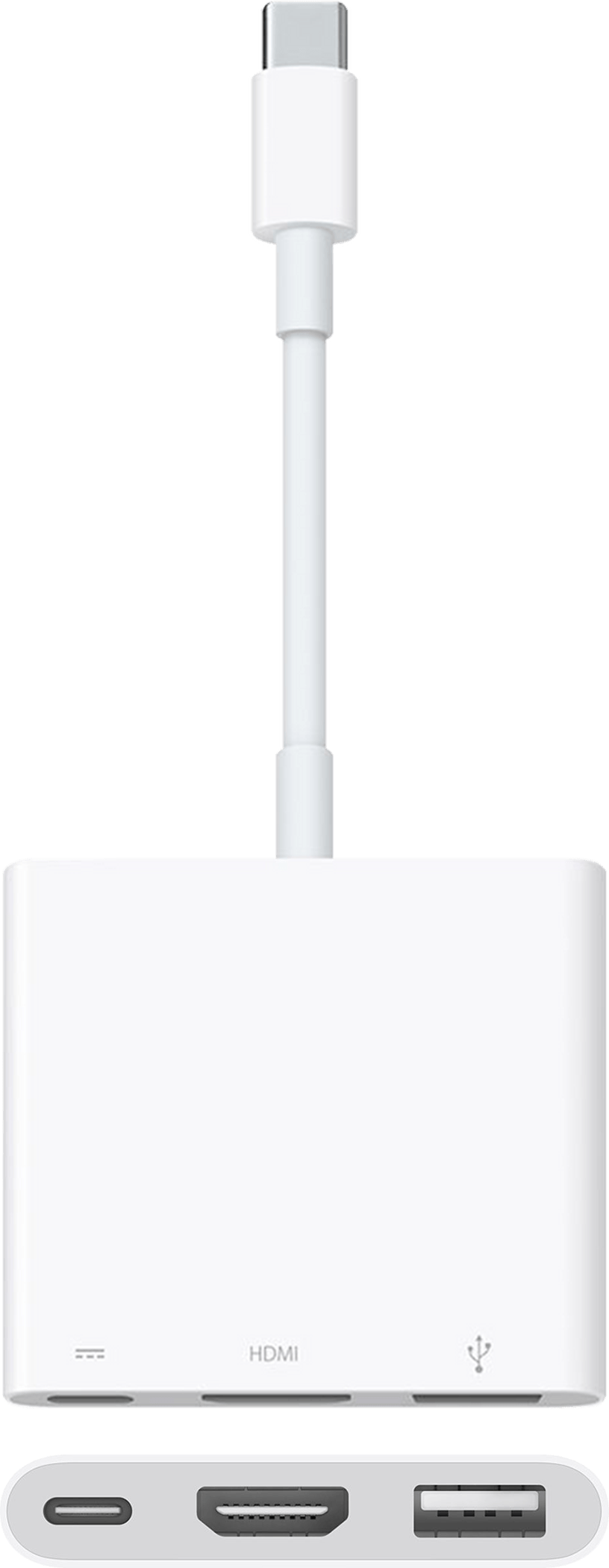
When wireless methods fail, a wired HDMI connection is the most reliable option.
For iPhone and iPad
- Get an Apple Digital AV Adapter
- Connect one end to your iPad and the other to your TV’s HDMI port
- Switch TV input to the correct HDMI channel
- Open the DIRECTV app and screen mirrors instantly
For Android
- Use a USB-C to HDMI adapter
- Plug into your phone and TV
- Enable Display Mirroring or DeX Mode if prompted
- Launch DIRECTV app
Benefits include no Wi-Fi needed, no lag or buffering, full HD resolution, and works with older non-smart TVs.
Technical Compatibility Overview

| Method | Supported | Device Requirements |
|---|---|---|
| AirPlay from iPhone | No (in app) | Apple TV, AirPlay 2 TV |
| Chromecast from Android | No (in app) | Chromecast, Android TV |
| Screen Mirroring to DIRECTV Box | No | C71K, C72K |
| OS-Level Mirroring to Fire TV | Yes | Fire Stick, iOS/Android |
| OS-Level Mirroring to Roku | Yes | Roku with AirPlay |
| Channel App Casting | Yes | Any smart TV or streamer |
| Third-Party Apps | Yes | Fire Stick, PC, Mac |
| Wired HDMI | Yes | AV adapter, HDMI cable |
Best Practices by Device Type
For iPhone and iPad Users
- Never try to cast the DIRECTV app directly, it will fail
- Mirror to Fire TV or Roku first, then open the app
- Install DoCast if your TV doesn’t show up in AirPlay
- Use channel apps like ESPN and HBO Max for full casting support
For Android Users
- Use Google Home app to cast your screen to Chromecast
- After mirroring, open the DIRECTV app
- Try the Chrome browser method on stream.directv.com
- Use USB-C to HDMI for guaranteed wired output
For Multi-TV Households
- Install Fire TV Stick on every TV for uniform AirPlay support
- Train family members to use network apps instead of DIRECTV app for casting
- Keep HDMI cables and adapters on hand for older TVs
For Outdoor or Remote Use
- Avoid relying on mobile hotspot plus DIRECTV mirroring
- Use channel-specific apps that support offline or cast modes
- Bring a wired HDMI setup for reliable playback
Key Takeaways for Screen Mirroring on DIRECTV
The DIRECTV app does not support screen mirroring via AirPlay, Chromecast, or Miracast due to DRM protections. The DIRECTV STREAM box cannot receive mirrored screens from phones or tablets. However, you can work around these limitations using channel-specific apps like ESPN and HBO Max, mirroring to Fire TV or Roku at the OS level before opening the DIRECTV app, using third-party apps like DoCast or Reflector, and using wired HDMI connections for guaranteed reliability.
The best long-term solution is to standardize your home entertainment setup with Fire TV devices and train everyone to use channel apps for casting. This provides the most consistent way to enjoy DIRECTV content on the big screen wirelessly and without frustration.
Frequently Asked Questions About Screen Mirroring on DIRECTV
Can I screen mirror the DIRECTV app to my TV?
No, the DIRECTV app actively blocks screen mirroring through AirPlay, Chromecast, or Miracast. The app detects when it’s being cast and disables video output to protect copyrighted content.
Why does DIRECTV block screen mirroring?
DIRECTV STREAM blocks mirroring to comply with content licensing agreements and DRM policies. Networks require these protections to prevent unauthorized redistribution of their content.
Can I mirror my phone to a DIRECTV STREAM box?
No, the DIRECTV STREAM box cannot receive mirrored screens. It lacks support for AirPlay, Google Cast, or Miracast and cannot act as a target device for screen mirroring.
What’s the best workaround for screen mirroring DIRECTV?
Use channel-specific apps like ESPN, HBO Max, or Discovery+ instead of the DIRECTV app. These apps support AirPlay and Chromecast when you sign in with your DIRECTV credentials.
Does wired HDMI work with the DIRECTV app?
Yes, wired HDMI connections work reliably. Use an Apple Digital AV Adapter for iPhone or iPad, or a USB-C to HDMI adapter for Android devices. This method bypasses all software restrictions.
Can I use Fire TV to mirror DIRECTV?
Yes, but you must mirror your entire device screen to the Fire TV first, then open the DIRECTV app. Mirroring from within the app doesn’t work. Resolution may be lower than native playback.