Imagine sitting in your parked EV, phone charging, and wanting to catch up on YouTube, Netflix, or a live game, only to find Apple CarPlay blocks video playback. You’re not alone. Thousands of drivers search for ways to screen mirror on CarPlay, despite Apple’s strict restrictions. The good news? Full iPhone screen mirroring is possible, just not through official channels.
This guide breaks down every method, from beta apps like TDS Video to hardware adapters and Android-based CarPlay boxes. You’ll learn exactly how to mirror your iPhone screen safely and effectively when parked.
Bypass CarPlay Video Blocks
Apple disables video and full screen mirroring in CarPlay by design. When your car is moving, the system uses GPS and vehicle sensors to lock out distractions. Even when parked, video apps remain blocked at the OS level. But workarounds exist that let you screen mirror on CarPlay safely and legally.
The key is understanding that CarPlay doesn’t allow screen mirroring natively. Instead, you need either a third-party app or hardware that tricks the system into enabling video output. These solutions don’t hack Apple’s code but use approved features like AirPlay, local Wi-Fi networks, or modified firmware to display content.
Your success depends on three factors: iPhone model, vehicle year, and connection type. Older cars without CarPlay require full head unit replacement. Newer models from 2017 onward support most adapters. iPhones from iPhone 6 onward with iOS 10 or newer are generally compatible.
Before proceeding, always ensure your vehicle is fully parked with the parking brake engaged. Watching video while driving is illegal in most regions and defeats the purpose of CarPlay’s safety design.
Why Apple Blocks Video on CarPlay
Apple restricts video on CarPlay to reduce driver distraction. The system only allows approved apps like navigation, calls, messages, and audio, displayed in a simplified vertical layout. Video apps like YouTube, Netflix, and TikTok are disabled entirely, even when parked.
Motion detection plays a big role. CarPlay uses GPS speed and CAN bus data from your car to determine if you’re moving. If so, keyboard inputs, web searches, and video playback are locked. Some vehicles unlock limited functions when stopped, but video remains blocked across all models.
Apple has shown no sign of changing this policy. That’s why users turn to third-party solutions for screen mirroring, especially EV owners who spend 20 or more minutes charging and want to use the downtime productively.
When Screen Mirroring Is Safe and Legal
Screen mirroring is acceptable and often useful when the vehicle is not in motion. Safe scenarios include charging an electric vehicle like a Ford Mach-E, Rivian, or Tesla, waiting during school pickup or shopping, taking a lunch break on a road trip, or watching videos during long rest stops.
Passenger viewing is also widely permitted, especially on rear-seat displays. However, the driver should never watch video while operating the vehicle. Using screen mirroring while driving can result in fines, insurance liability, or accidents.
Always engage the parking brake as a physical reminder that the car is stationary. Many adapters and apps will only function when motion is undetected, adding an extra layer of safety.
Use TDS Video for Full Mirroring
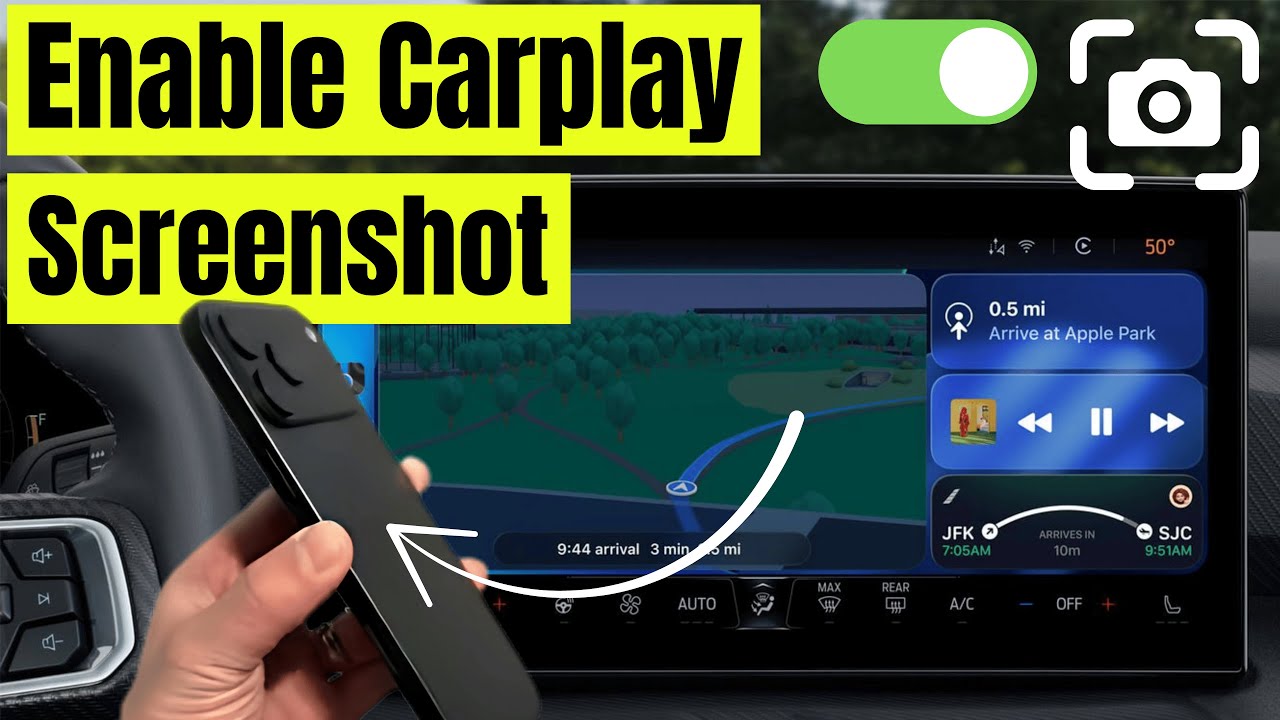
One of the most popular software-based solutions for screen mirroring on CarPlay is TDS Video, a beta app distributed via Apple TestFlight. It bypasses Apple’s restrictions by running a lightweight streaming server on your iPhone, allowing full screen projection over CarPlay.
While not available on the App Store, TDS Video has gained a strong following among tech-savvy users. It works best with wired CarPlay, though wireless support exists with higher latency. Developed by community member CatLumpy9152, the app is free to use but requires joining a beta program with limited slots.
Install TDS Video via TestFlight
To install TDS Video, follow these steps:
- Open Safari and go to testflight.apple.com/join/1Z9HQgNw
- Tap “Join” and follow prompts to install TestFlight if not already installed
- Install TDS Video from the TestFlight app
- Restart your iPhone after installation
- Connect to CarPlay using a wired USB cable
- Open TDS Video on your iPhone
- Tap “Start Broadcast” and open the app on CarPlay
If the app does not appear on your CarPlay dashboard, try reconnecting the USB cable or restarting the head unit.
Note: The beta has a limited number of slots. If you see “Beta is full,” you will need to wait for availability. Developers can renew the build every 90 days, but access is not guaranteed.
Fix Common TDS Video Issues
Users report several common issues with TDS Video. A white bar on screen occurs in left-hand drive vehicles due to aspect ratio mismatch. Try rotating the video or using full-screen browser mode. If the app is not showing on CarPlay, restart your iPhone and re-pair CarPlay. Delete and re-add the app if needed.
Audio delay is rare but can happen on older iPhones. Close background apps and restart. Freezing or lag is more common with wireless CarPlay. Use wired connection for best results. DRM blocks live content on some platforms like ESPN. Workaround: Use the app’s built-in browser to load videos.
For smoother performance, close unused apps, ensure sufficient storage, and keep iOS updated.
Try Screen Mirroring Apps
If you prefer not to rely on beta software, several third-party apps offer screen mirroring over Wi-Fi or local networks. These do not require jailbreaking and work alongside standard CarPlay.
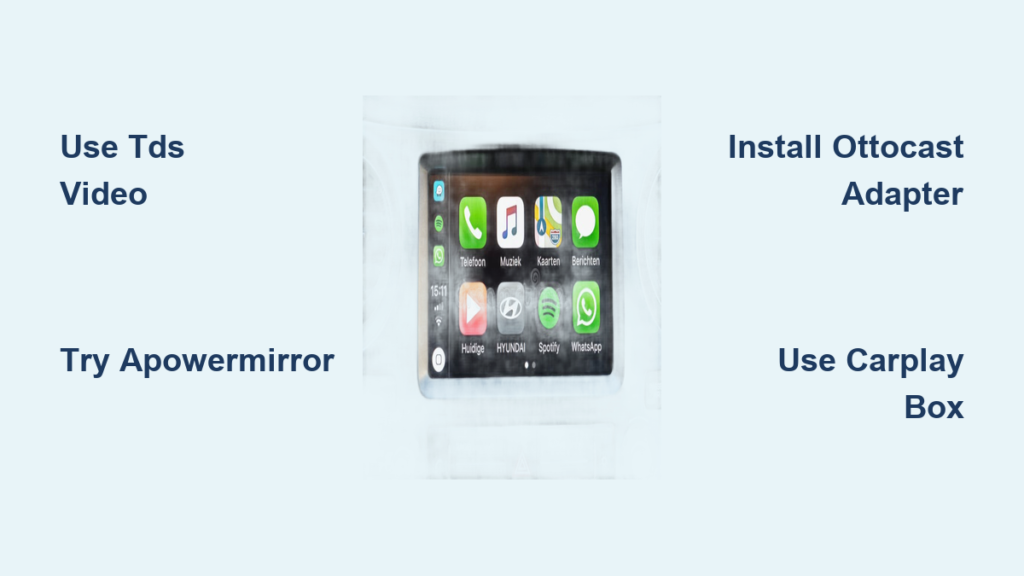
Apps like ApowerMirror, AirDroid Cast, LetsView, and EasyConnection create a direct connection between your iPhone and the car’s infotainment system. They use Wi-Fi or Bluetooth to mirror the screen, often with low latency and good audio sync.
Set Up ApowerMirror on CarPlay
ApowerMirror is one of the most reliable screen mirroring apps for iOS. Here is how to use it:
- Download ApowerMirror from the App Store
- Connect your iPhone to CarPlay via USB
- Open ApowerMirror and tap “Mirror”
- Select your car from the list of available devices
- Allow Bluetooth and Wi-Fi permissions
- Once connected, return to home screen and open YouTube, Netflix, or any video app
The app supports high-resolution video, audio transmission, and multi-device control. For best results, keep your phone close to the car’s USB port to maintain strong Wi-Fi signal.
Pro Tip: Use your phone’s hotspot instead of car Wi-Fi for more stable connection.
Compare Top Mirroring Apps
The following apps are the most reliable for screen mirroring on CarPlay:
- ApowerMirror supports iOS 10 and above with low latency and high-quality video
- AirDroid Cast works with iOS 11 and above, offers cross-platform support
- XMirror runs on iOS 10 and above with medium latency and privacy-focused features
- EasyConnection is compatible with iOS 10 and above, features a simple UI optimized for CarPlay
All four apps are free to download, with premium upgrades for advanced features. For CarPlay use, EasyConnection and ApowerMirror are top picks due to better integration.
Install CarPlay Adapters
For a plug-and-play solution, CarPlay adapters offer the most reliable way to enable screen mirroring without modifying your iPhone. These small devices plug into your car’s USB port and create a bridge between your iPhone and the infotainment screen.
Top models include Ottocast Mirror Touch, CarbitLink, Carlinkkit, and Smart AI Box. They support both wired and wireless CarPlay, with a switch to toggle between standard mode and full screen mirroring. These adapters run custom firmware that allows AirPlay or Wi-Fi mirroring, often with touch control support.
Choose the Right Adapter
When selecting a CarPlay adapter, consider connection type, touch support, boot time, heat management, and firmware updates. Wired-only adapters offer more stability, while wireless options provide convenience. Touch support lets you control your iPhone via the car touchscreen. Faster boot time is better for quick starts. Heat management is critical in hot climates. Regular firmware updates improve stability.
Ottocast Mirror Touch is the top recommendation for most users. It supports dual-mode operation, has excellent app integration, and works with 95% of CarPlay-compatible vehicles from 2017 onward. Avoid low-cost clones, as they often overheat, lag, or fail after firmware updates.
Set Up Ottocast Mirror Touch
- Plug the Ottocast adapter into your car’s CarPlay USB port
- Turn on the ignition
- Enable Wi-Fi and Bluetooth on your iPhone
- Connect to the Ottocast Wi-Fi network
- Open a browser and go to ottocast.ai to complete setup
- Pair via Bluetooth when prompted
- Launch CarPlay or switch to mirror mode
Once set up, you can toggle between normal CarPlay and full screen mirroring. Use the Mirror app on your iPhone to start broadcasting. For video, open YouTube or Netflix directly on your phone, and the screen will appear on your car display with minimal delay.
Upgrade with CarPlay Boxes
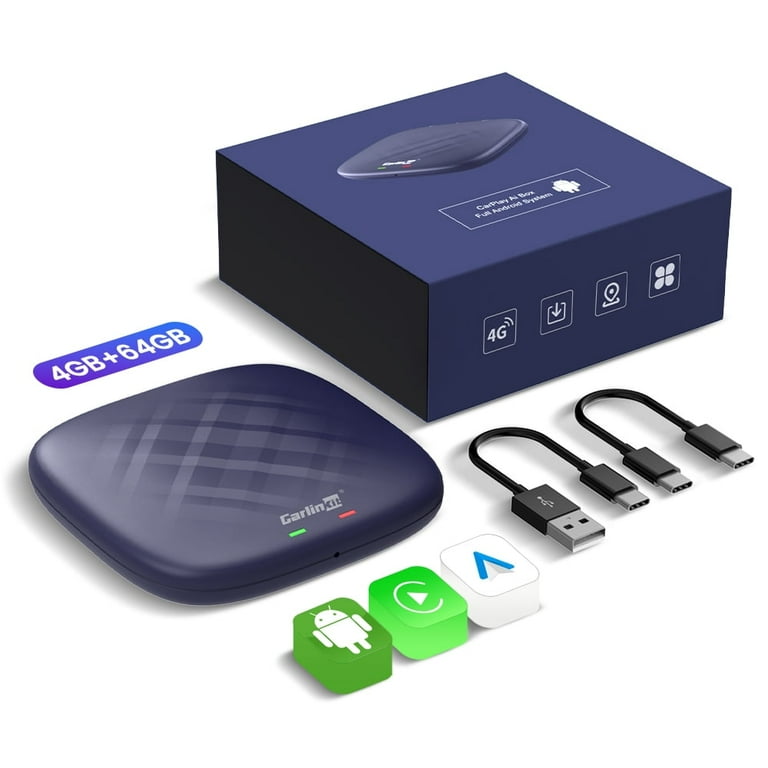
For maximum flexibility, Android-based CarPlay boxes replace or enhance your factory infotainment system. These standalone devices run full Android OS, giving you access to the Google Play Store, SIM cards, and native app streaming.
Models like CarPlay Box Ultra, HE PRO, and Smart AI Box support wireless screen mirroring, direct YouTube and Netflix playback, and even built-in GPS. Unlike mirroring apps, these boxes do not rely on your iPhone for content. Instead, they connect to your phone for CarPlay functionality while running Android apps independently.
Enable Wireless Mirroring on CarPlay Box
To mirror your iPhone to a CarPlay box:
- Turn on your iPhone’s personal hotspot
- On the CarPlay box, go to Wi-Fi settings and connect to the hotspot
- Open the EasyConn app on the box
- On your iPhone, swipe down and tap Screen Mirroring or AirPlay
- Select the box from the list
- Tap “Trust” if prompted
Your iPhone screen will now appear on the car display. You can close the CarPlay interface and use the box for other tasks.
For Android phones, use the CarbitLink app. Install CarbitLink from Play Store, connect the box to your phone’s hotspot, open CarbitLink, tap “Screen Mirroring,” and click Start now. Then pair via Bluetooth.
Note: Disable wireless Android Auto in SpeedPlay or INCAR LINK to prevent auto-connect conflicts.
Stream Directly Without Mirroring
The biggest advantage of CarPlay boxes is that you do not need to mirror at all. Once online via SIM, Wi-Fi, or hotspot, install YouTube, Netflix, or Disney+ directly on the box. Then stream content natively without your iPhone.
This eliminates latency, improves battery life, and allows passenger use without touching your phone. Use cases include kids watching cartoons during charging, drivers checking news or sports highlights, and professionals reviewing presentations.
Boxes with SIM slots like CarPlay Box Ultra offer true independence, ideal for fleet vehicles or frequent travelers.
Use USB or External Media
If you prefer a simple, no-tech solution, play videos from a USB drive or SD card. This method works on most aftermarket head units and some factory systems with media input.
- Save videos in MP4, AVI, or MOV format to a USB drive
- Insert into your car’s USB port
- Open media player on infotainment screen
- Select and play the file
No internet, setup, or compatibility issues required.
Best USB Players for CarPlay
Some head units combine CarPlay with USB video playback. The Carpuride YT09s supports CarPlay, Android Auto, HDMI, and USB video. The Pioneer AVH-Z9250BT features a large touchscreen with DVD and USB playback. The Kenwood DDX9705S offers HDMI input, capacitive touch, and a media browser.
These units allow you to switch between CarPlay and local media without disconnecting. Limitations include no streaming, manual file transfer required, and no app interactivity. But for offline viewing, it is the most stable option.
Try Portable Tablet Displays
For passenger entertainment, skip CarPlay entirely and use a mounted iPad or tablet. This avoids all compatibility issues and offers full app access.
- Mount tablet on dashboard or rear seat
- Connect to Wi-Fi or cellular data
- Play videos from YouTube, Netflix, or local files
Use cases include kids watching shows on road trips, business travelers reviewing documents, and couples watching movies during charging.
Advantages include no modification to car system, full functionality, and easy removal. Drawbacks include not being integrated with the car display, requiring a separate power source, and possibly obstructing view if poorly mounted.
This option is ideal for families or shared vehicles where driver focus must remain undisturbed.
Check Compatibility Requirements
Before buying any solution, verify your device and vehicle support.
iPhone and iOS Needs
TDS Video requires iPhone 5s or newer with iOS 10 or newer, and beta access is required. CarPlay adapters require iPhone 6 or newer with iOS 10 or newer, with wired connection preferred. Mirroring apps require iPhone 5s or newer with iOS 10 or newer and depend on Wi-Fi. CarPlay boxes are Android-based and work with any iPhone.
Older iPhones may experience lag. For best performance, use iPhone 8 or newer.
Vehicle Compatibility
Vehicles from 2014 to 2016 may need firmware updates or adapters. Models from 2017 onward have broad support for all methods. BMW, Mercedes, and Audi often restrict third-party access, so check forums before purchasing. EVs like the Mach-E, Rivian, and Lucid have large screens ideal for mirroring.
Pre-2014 vehicles lack CarPlay entirely. Upgrade the head unit for full functionality.
Follow Safety and Legal Rules
Never use screen mirroring while driving. In nearly all countries, watching video as the driver is illegal and dangerous.
Use only when the vehicle is fully parked, the parking brake is engaged, and you are not supervising driving tasks. Passenger viewing is generally allowed, especially on rear screens.
Apple blocks video for a reason: safety. Any workaround should be used responsibly. Avoid using these tools in school zones, traffic, or public areas where distraction could pose a risk.
Also consider insurance liability, as using video while driving may void coverage. Battery drain occurs during long mirroring sessions. Heat exposure can cause adapters and phones to overheat in sunlight.
When in doubt, wait until you are safely parked.
Frequently Asked Questions About Screen Mirroring on CarPlay
Can I screen mirror on CarPlay without jailbreaking?
Yes, you can screen mirror on CarPlay without jailbreaking. Multiple third-party solutions exist, including TDS Video beta app, mirroring apps like ApowerMirror, CarPlay adapters like Ottocast Mirror Touch, and Android-based CarPlay boxes. None require jailbreaking your iPhone.
Does screen mirroring work while driving?
No, screen mirroring should not be used while driving. Apple designed CarPlay to block video and distracting apps for safety. Most third-party solutions only work when the vehicle is parked. Using screen mirroring while driving is illegal in most regions and could result in fines or insurance issues.
Why does CarPlay block YouTube and Netflix?
CarPlay blocks YouTube and Netflix because Apple intentionally restricts video playback to reduce driver distraction. The system uses motion detection via GPS and vehicle data to determine if the car is moving. Even when parked, video apps remain blocked at the operating system level.
What is the best way to watch video on CarPlay?
The best way to watch video on CarPlay depends on your needs. For wired mirroring with the best performance, use TDS Video with a USB connection. For plug-and-play convenience, use an Ottocast adapter. For maximum flexibility with direct app streaming, use a CarPlay Box like the Ultra or HE PRO.
Do CarPlay adapters work on all vehicles?
CarPlay adapters work on most vehicles from 2017 onward with factory CarPlay support. However, some premium brands like BMW, Mercedes, and Audi may restrict third-party access. Always check compatibility forums for your specific vehicle model before purchasing an adapter.
Can I use screen mirroring for Android Auto instead?
Yes, Android Auto has similar restrictions to CarPlay. You can mirror an Android phone using apps like CarbitLink or by using an Android-based CarPlay box. Some solutions support both iPhone and Android, giving you flexibility regardless of your phone type.
Key Takeaways for Screen Mirroring on CarPlay
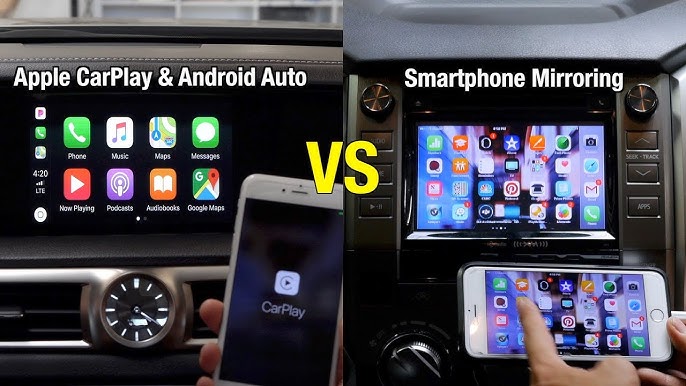
While Apple does not support screen mirroring on CarPlay, practical solutions exist for use when parked. Whether you choose TDS Video, a CarPlay adapter, or a full Android head unit, prioritize safety, compatibility, and stability. Wired connections and high-end hardware deliver the best experience.
The best method depends on your specific needs. For EV owners who want to watch YouTube during charging, TDS Video or a CarPlay box works well. For families on road trips, a CarPlay box with SIM card allows direct Netflix streaming without phone dependency. For simple offline playback, a USB drive with a compatible head unit requires no setup.
Always verify iPhone, car model, and software requirements before purchasing any solution. Check compatibility forums, especially for premium vehicle brands. Use screen mirroring responsibly and never while driving.