
Have you ever wanted to share a video, photo, or mobile game on a bigger screen? Screen mirroring on Android makes it possible to instantly project your phone’s display to a TV, monitor, or PC. Whether you’re giving a presentation, watching content with friends, or troubleshooting a device remotely, screen mirroring turns your smartphone into a portable media hub. This guide covers every method from built-in features to advanced tools so you can mirror your Android screen smoothly and securely.
Access Built-in Screen Mirroring on Your Android
Most modern Android phones support screen mirroring natively, but the feature may be labeled differently depending on your device brand. This method uses Wi-Fi Direct or Google Cast to connect directly to a TV or streaming device without additional apps.
Find Cast or Smart View in Quick Settings
Swipe down from the top of your screen twice to open the Quick Settings panel. Look for Screen Mirroring, Cast, Smart View (Samsung), or Wireless Display. Tap it and wait for nearby devices to appear. Select your TV or adapter such as Chromecast, Roku, or Miracast receiver. Confirm the connection on both devices.
If the icon is not visible, tap the Edit pencil icon and add the Cast or Smart View tile for easier access. This places the feature directly in your Quick Settings for faster future use.
Navigate Through Settings if the Option is Missing
Some devices hide the feature deeper in the settings menu. Go to Settings then Connected Devices or Network & Internet. Look for Connection Preferences, Cast, or Screen Mirroring. The exact path varies by manufacturer and Android version.
Once connected, a blue dot or notification appears in the status bar indicating active mirroring. Your phone screen now displays on the external device in real time.
Why Screen Mirroring Might Not Work
Several common issues prevent successful connections. Your device may lack Miracast support, which is common in budget phones like the Galaxy A21s. The TV screen mirroring setting may be disabled in the device settings. Both devices must be on the same Wi-Fi network unless using Wi-Fi Direct. Check these factors before trying alternative methods.
Use Google Home for Full Screen Casting

If your phone lacks native screen mirroring, the Google Home app provides a reliable workaround. This method works even on devices like the Galaxy A21s that do not support Miracast natively.
Set Up Google Home with Roku or Chromecast
Install the Google Home app from the Play Store and sign in with your Google account. Tap the plus icon, select Set up device, and choose Works with Google. Select Roku or search for your Chromecast device. Log in to your Roku account when prompted and assign the device to a room such as Living Room.
This links your Android device to the TV through Google’s ecosystem, enabling full screen mirroring capabilities even when native options are unavailable.
Start Full Screen Mirroring
Open the Google Home app and tap and hold your Roku or Chromecast tile. Select Cast my screen from the menu. Tap Start now on the prompt that appears. Your phone’s display immediately appears on the TV.
To stop mirroring, open Google Home, tap the casting notification, and select Disconnect. The connection ends and your phone returns to normal display mode.
Fix Common Google Home Setup Issues
If no devices appear in the list, ensure both your phone and TV are connected to the same Wi-Fi network. Screen mirroring must be enabled on Roku TVs. Go to Settings, then System, then Screen mirroring and turn it On. Connection failures often resolve by restarting both devices and updating the Roku firmware to the latest version.
Mirror Without Shared Wi-Fi Using Mobile Hotspot

When your phone and TV cannot join the same network, use your phone’s mobile hotspot to create a private local network. This works in dorms, offices, or anywhere with restricted Wi-Fi access.
Create a Local Network with Hotspot
On your Android phone, go to Settings, then Network & Internet, then Hotspot & tethering. Turn on Wi-Fi hotspot and note the network name and password displayed. On your TV, go to Settings, then Network, then Wi-Fi. Select your phone’s hotspot from the list and enter the password to connect.
Both devices now share a private network connection even if the hotspot has no internet access.
Cast Using Google Home
Open the Google Home app and tap your device tile. Select Cast my screen and tap Start now when prompted. The mirroring session begins using your phone’s hotspot network rather than a traditional Wi-Fi router.
This method works reliably but has notable drawbacks. The approach drains battery quickly, so keep your phone charged during extended sessions. It uses mobile data, so avoid large file transfers on limited plans. Signal strength matters, so stay close to the TV for stable performance.
Connect via USB-C to HDMI for Wired Mirroring

For zero lag and maximum reliability, use a wired connection. This approach is ideal for gaming, presentations, or situations with unstable Wi-Fi.
Use USB-C to HDMI Adapter
Plug a USB-C to HDMI adapter into your phone. Connect an HDMI cable from the adapter to your TV or monitor. Switch the TV to the correct HDMI input. Your screen appears instantly without any network configuration.
Ensure your phone supports DisplayPort Alt Mode before purchasing an adapter. Most flagship phones from Samsung, Google, and OnePlus support this feature, but budget devices may not.
Try MHL for Older Devices
If your phone has a micro-USB port, use an MHL adapter instead. These adapters require external power and connect via HDMI. Older Samsung and HTC devices commonly support MHL. The screen mirrors automatically when you turn on the correct TV input.
Wired connections offer advantages over wireless methods. There is no latency, making it perfect for fast-paced games. No Wi-Fi network is needed, so it works anywhere. The audio and video remain stable without compression or dropouts. The tradeoff is that you are physically tethered and need to carry extra hardware.
Mirror to PC Using Scrcpy
For developers, testers, or power users, Scrcpy offers high-performance screen mirroring to a Windows, Mac, or Linux PC. This open-source tool requires no root access and provides full device control.
Install and Run Scrcpy via USB
Download Scrcpy from GitHub and extract the ZIP file to a folder on your computer. Enable Developer Options on your Android by going to Settings, then About Phone, and tapping Build Number seven times. Go to Developer Options and enable USB Debugging. Connect your phone to the computer via USB and accept the RSA key prompt on your phone. Run scrcpy.exe on Windows or use the terminal command on Mac and Linux.
Your Android screen appears on the PC and is fully controllable with mouse and keyboard input.
Go Wireless After Initial USB Setup
With your phone still connected via USB, open a terminal and run adb tcpip 5555. Disconnect the USB cable. Find your phone’s IP address in Settings, then About Phone, then IP Address. Connect via Wi-Fi by running adb connect your_ip_address:5555. Run Scrcpy normally and the connection works wirelessly.
Both devices must remain on the same network after the initial setup. The wireless method adds slight latency but provides freedom from cables.
Use Third-Party Apps for Additional Options
Several third-party apps provide screen mirroring with unique features. ApowerMirror supports wireless and USB connections to PC or TV with a free version containing ads. Vysor mirrors Android to a Chrome browser with free and paid tiers. Screen Mirroring App from tvee.app works across platforms via web browser and supports remote access across different locations.
Try tvee.app for Internet-Based Mirroring
On your PC or smart TV, open tvee.app in a browser and note the six-digit ID shown. Install the Screen Mirroring App from Google Play on your Android. Scan the QR code or enter the six-digit ID to connect. The connection establishes in seconds and supports full screen mirroring including notifications.
This method works over 4G, 5G, or any internet connection, enabling remote screen sharing across cities or countries. Security varies by provider, so evaluate encryption standards and privacy policies before using internet-based tools for sensitive content.
Frequently Asked Questions About Screen Mirroring on Android
Can I screen mirror without Wi-Fi?
Yes, you can mirror without Wi-Fi using several methods. A wired USB-C to HDMI connection requires no network at all. Wi-Fi Direct (Miracast) creates a direct peer-to-peer connection without internet. The mobile hotspot method creates a private network between your phone and TV without requiring external Wi-Fi access.
Why cannot I find the Cast option on my Android phone?
The Cast option may be missing for several reasons. Your device may not support Miracast, which is common in budget models like the Samsung Galaxy A21s. The feature might be hidden or renamed, such as Smart View on Samsung devices. Your software may be outdated. Try installing the Google Home app as an alternative casting solution.
Does screen mirroring drain battery quickly?
Yes, screen mirroring uses significant processing power and wireless transmission. Expect twenty to forty percent faster battery drain compared to normal use. Keep your device plugged in during extended mirroring sessions to maintain battery levels.
Can I use screen mirroring to watch Netflix or Hulu?
You can mirror streaming apps, but some restrict playback due to DRM (Digital Rights Management). Netflix may show a black screen or display an error message when mirrored. Use app-level casting instead, which streams the video directly to the TV while your phone acts as a remote control.
What is the best method for gaming on a big screen?
For gaming, wired USB-C to HDMI connection provides the lowest latency. Scrcpy offers near-native performance with minimal delay over USB or Wi-Fi. Wireless methods work for casual games but may introduce noticeable lag for fast-paced titles.
Is screen mirroring secure?
Built-in methods like Miracast and Google Cast encrypt your data. However, screen mirroring broadcasts everything on your screen including notifications and messages. Enable Do Not Disturb mode before mirroring in public places. Always disconnect after use and avoid showing sensitive information.
Key Takeaways for Screen Mirroring on Android
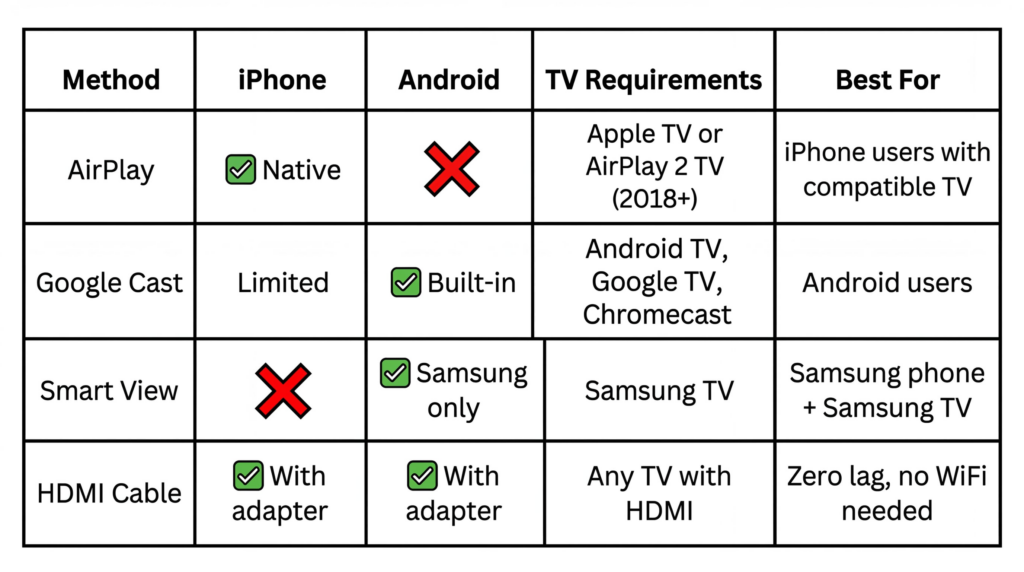
Screen mirroring on Android offers multiple paths depending on your device capabilities and use case. The built-in Cast or Smart View feature works on most modern phones and connects to smart TVs, Chromecast, or Roku devices through your Wi-Fi network. For devices lacking native support like the Galaxy A21s, the Google Home app provides a reliable alternative that mirrors the full screen to compatible streaming devices.
Wireless methods offer convenience but depend on stable Wi-Fi. The mobile hotspot workaround solves scenarios where devices cannot share a network. For gaming or professional use, wired USB-C to HDMI connections eliminate latency entirely. Advanced users benefit from Scrcpy, which mirrors to PC with full keyboard and mouse control without requiring root access.
Always verify device compatibility before attempting to mirror. Check that your TV has screen mirroring enabled in its settings. Keep devices updated for the best performance and security. Disconnect after each session and avoid mirroring sensitive information in public settings.