
If you’re wondering how to screen mirror iPhone to BMW, you need to know a critical reality first: BMW does not support native screen mirroring for iPhones. Unlike Android devices that can use Miracast, Apple’s AirPlay is not built into BMW’s iDrive system. The “Screen Mirroring” option in the menu only works with Android phones, leaving iPhone users unable to project their full display.
Instead, BMW pushes iPhone users toward Apple CarPlay, a curated interface that limits access to approved apps like Apple Maps, Spotify, and Messages. However, workarounds exist. This guide covers every method, limitation, and solution so you can choose the best path based on your technical comfort and budget.
Native Screen Mirroring: Android Only
BMW’s built-in screen mirroring uses Miracast, a Wi-Fi Direct protocol that allows Android devices to wirelessly project their screen to the iDrive display. Despite the presence of a “Screen Mirroring” option in the iDrive menu, iPhones cannot connect regardless of model year or software version.
Why Miracast Blocks iPhones
The technical incompatibility stems from fundamental differences between the two protocols.
• Miracast is an Android standard, while Apple uses AirPlay (proprietary)
• BMW’s iDrive has no AirPlay receiver built into the system
• CarPlay is BMW’s official path for iPhone integration
Even with Bluetooth paired and Wi-Fi connected, your iPhone will not appear as a detectable device when you open Control Center > Screen Mirroring.
Required Equipment for Mirroring
To enable native screen mirroring (Android only), your BMW must have specific hardware installed.
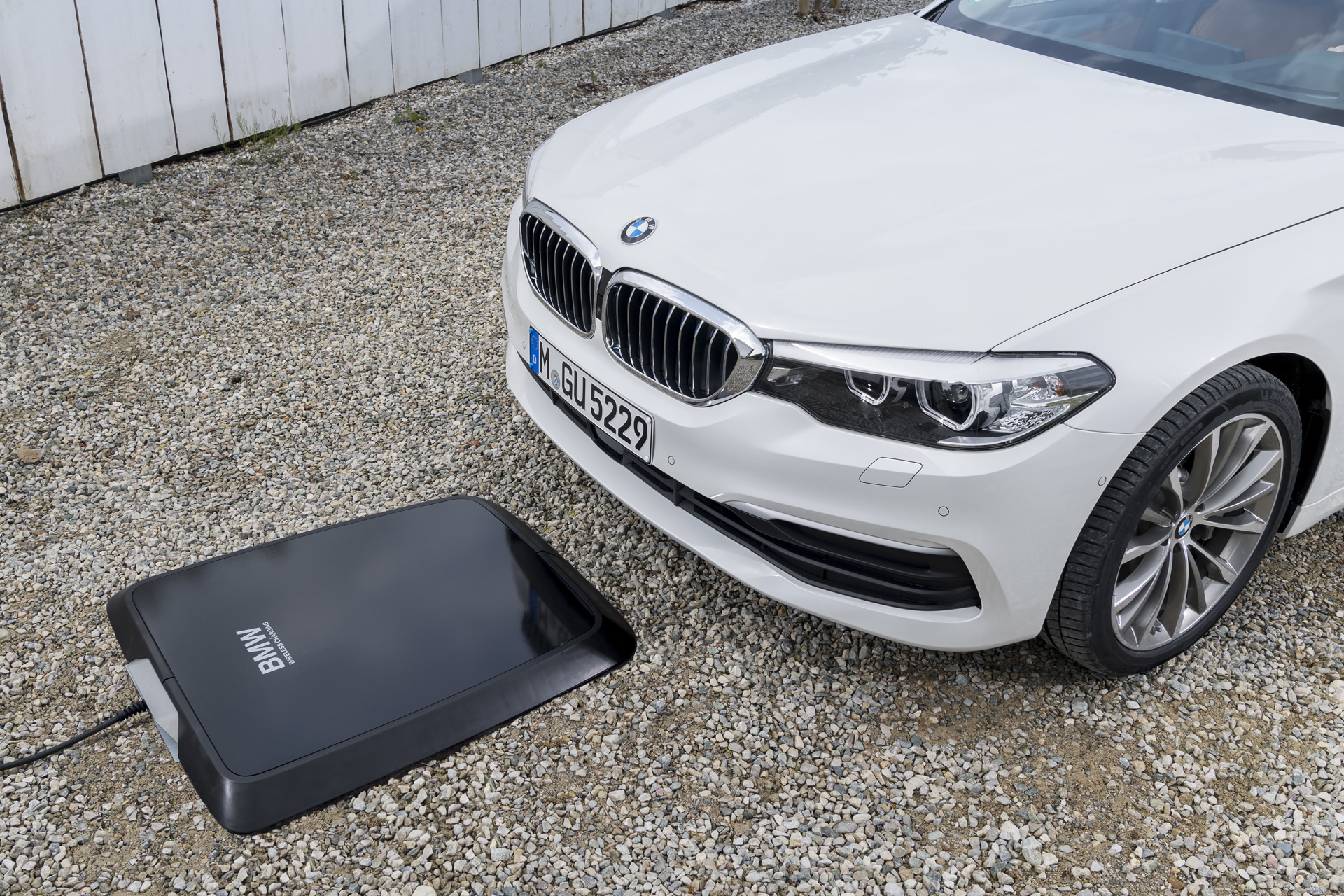
Option 6NW: Wireless Charging Package
The required configuration includes several interconnected features.
• Option Code 6NW – Wireless Charging with Enhanced USB and Bluetooth
• 6WD – Wi-Fi Hotspot capability
• ZEB – Enhanced USB and Bluetooth modules
Without 6NW, Miracast won’t work unless bypassed via coding or external hardware. Some users report success enabling mirroring on non-6NW vehicles using BimmerCode, but results vary based on hidden hardware support.
How to Mirror Android to BMW
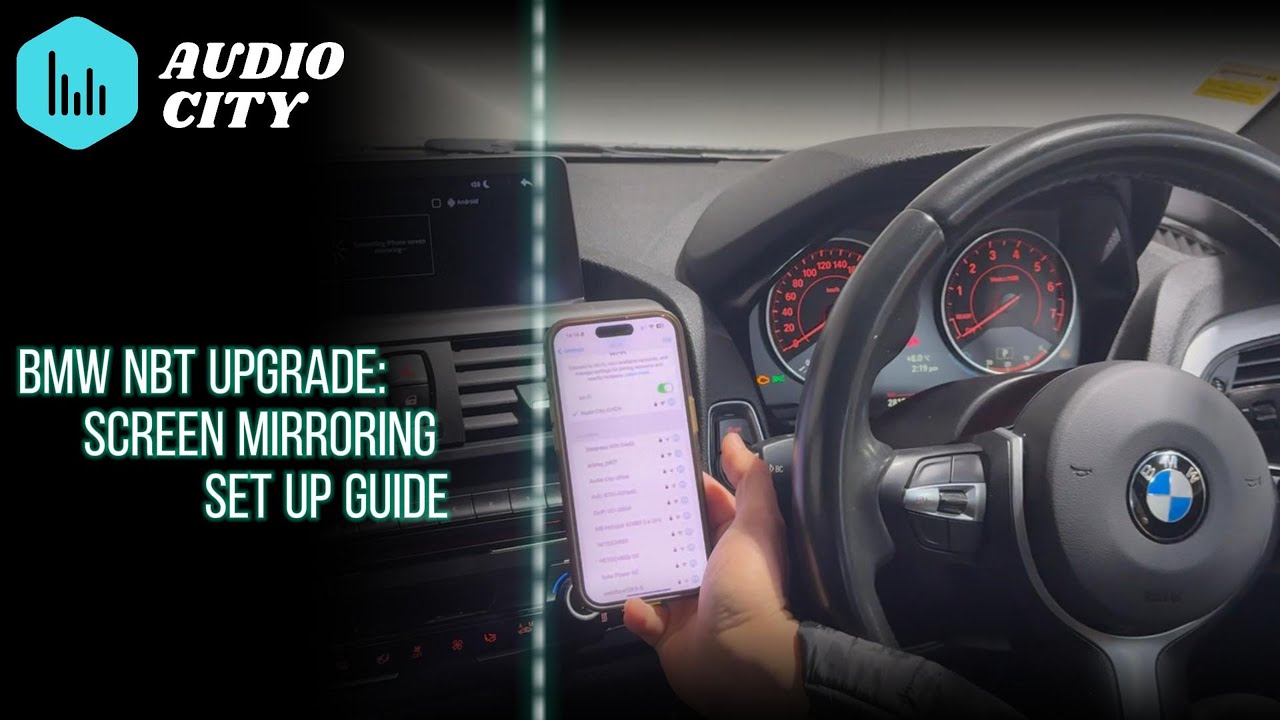
For Android users with compatible phones and the right equipment, follow these steps.
Pair Bluetooth and Enable Wi-Fi
- Go to Communications > Manage Devices > Add New Device
- Select your phone and complete Bluetooth pairing
- In iDrive: Settings > Bluetooth > [Your Device] > Allow Wi-Fi Connections
This step is critical because without permission, Miracast won’t initiate properly.
Activate Screen Mirroring
- Navigate to Communications > Manage Devices > Connect Device > Screen Mirroring
- On your phone, open Quick Settings
- Tap Smart View (Samsung), Cast, or Screen Mirroring
- Wait for BMW Miracast or iDrive to appear in the device list
- Tap to connect
After the first connection, future sessions can be launched directly from Screen Mirroring > Devices in iDrive.
What to Expect
When mirroring Android to BMW, be prepared for these behaviors.
• Audio plays through car speakers
• Latency is approximately 1.5–2 seconds
• No touchscreen control available—all input must be done on the phone
• Connection drops when the phone sleeps
Why iPhone Screen Mirroring Fails
BMW has not implemented AirPlay support in iDrive, which is the fundamental reason iPhone mirroring doesn’t work.
No AirPlay Support in iDrive
The system listens for Miracast signals, not AirPlay broadcasts, so your iPhone remains invisible.
• BMW uses Miracast (Android standard), Apple uses AirPlay (proprietary)
• No AirPlay receiver exists in the infotainment system
• CarPlay is treated as the sole iPhone integration method
Even when Bluetooth is paired, Wi-Fi is connected, and CarPlay works perfectly, you still cannot mirror your iPhone natively.
Apple CarPlay: The Official iPhone Solution
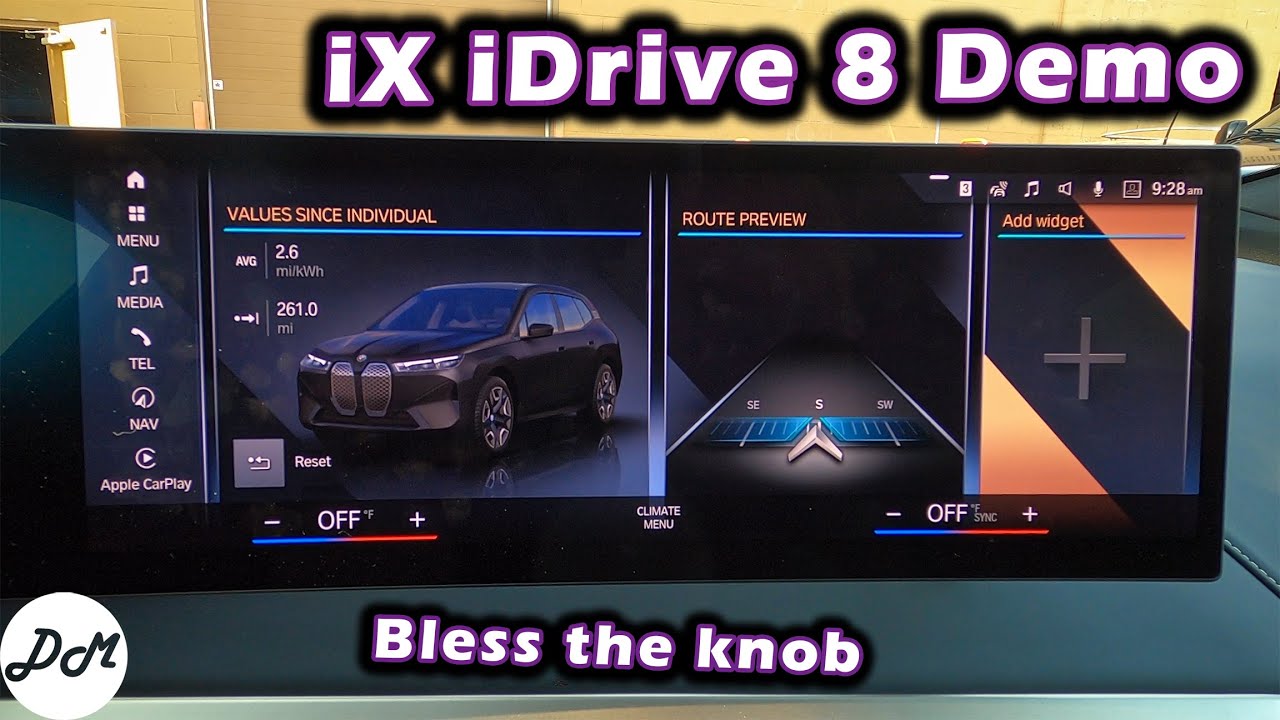
CarPlay is BMW’s only factory-supported method for iPhone integration. Available on all 2019+ models, it offers a clean, driver-focused interface—but it’s not full screen mirroring.
Wired CarPlay Setup
- Connect iPhone via Lightning cable
- Enable Siri on your phone
- Tap “Start CarPlay” when prompted on iDrive
- Tap “Trust This Computer” if asked
Wireless CarPlay Setup
- Ensure iPhone runs iOS 9 or later
- On iDrive: Settings > Bluetooth > Add Device
- Select your iPhone from the list
- Tap “Connect to Car” on your iPhone
- iDrive automatically switches to CarPlay when detected
All G05 and G01 models support wireless CarPlay out of the box.
CarPlay vs Full Mirroring
Understanding the differences helps set realistic expectations.
| Feature | CarPlay | Full Screen Mirroring |
|---|---|---|
| Full iOS Interface | No | Yes |
| Access to All Apps | No (approved only) | Yes |
| Use of Settings, Files, Games | No | Yes |
| Video Streaming (Netflix, YouTube) | No | Yes |
| Passenger Entertainment | Limited | Full access |
Workarounds: How to Mirror iPhone to BMW
Since native mirroring isn’t possible, several workarounds exist for iPhone users seeking full display projection.
Jailbreak + CarBridge (Full Mirroring)
This is the only way to mirror your entire iPhone screen over CarPlay, but it comes with significant trade-offs.
Requirements
• Jailbroken iPhone (iOS 12–16)
• Tools: Unc0ver, Taurine, or Palera1n
• Package Manager: Sileo or Zebra
• Install CarBridge from Packix
• BMW with wireless CarPlay support
Steps
- Jailbreak your iPhone
- Install CarBridge from the package manager
- Enable “Full iPhone Interface” in settings
- Connect to BMW via wireless CarPlay
- Your home screen appears on iDrive instead of CarPlay interface
Risks
This method carries serious considerations.
• Void Apple warranty
• Security vulnerabilities exposed
• OTA updates break jailbreak
• Potential detection at BMW service visits
Not for casual users, but effective for tech-savvy owners who understand the trade-offs.
SmartView HD Flex: Plug-and-Play Mirroring
The most reliable non-jailbreak solution enables AirPlay mirroring without voiding Apple warranties.
Key Features
• Supports AirPlay (iPhone) and Miracast (Android)
• Creates dedicated Wi-Fi network (no data needed)
• Enables video while driving
• Streams audio via AUX port
• Works on non-touchscreen models
• Firmware updates included
Installation
- Enter your VIN on BimmerTech’s site for compatibility
- Plug device into OBD-II or USB port
- Wait for firmware update if needed
- Connect iPhone via Control Center > Screen Mirroring
The device bypasses factory restrictions and works even without Option 6NW.
Limitations
• DRM blocks Netflix, Hulu, Disney+ due to content protection
• Price starts at $599
• Delivery takes 7–10 business days
Best for users who want easy, stable mirroring without jailbreaking.
BimmerCode: Unlock Hidden Features
BimmerCode is an OBD-II coding tool that unlocks hidden iDrive functions, but it cannot enable iPhone screen mirroring.
What It Can Enable
| Feature | Code Path | Status |
|---|---|---|
| Video in Motion | Headunit > HUNBTEVO | Enabled |
| Video via USB | Headunit > HUNBTEVO | Enabled |
| Additional Codecs | Headunit > HUNBTEVO | Enabled |
BimmerCode cannot activate AirPlay or Miracast for iPhone because the limitation is firmware-level, not a disabled setting.
Can It Enable iPhone Mirroring?
No. BMW may detect coding during service, potentially voiding warranty on related components.
ApowerMirror: Indirect and Unreliable
ApowerMirror is marketed as a screen mirroring app but fails practically for BMW integration.
How It Works
- Install ApowerMirror on iPhone
- Run receiver on Raspberry Pi or Android head unit
- Connect both to same Wi-Fi
- Tap “Local Cast” > “Screen Broadcast”
Why It Fails for BMW
• No direct iDrive support
• Requires extra hardware
• High latency and disconnections
• Not viable for daily driving
Only useful if you’ve replaced your iDrive with a custom head unit.
Safety and Control Limitations
BMW implements restrictions that affect all mirroring solutions, prioritizing driver safety.
Video While Driving: Disabled by Default
The factory blocks video playback while moving to prevent distraction.
Factory Behavior
• Mirroring and USB video turn off when car is in motion
• Re-enables automatically when parked
Workarounds
• BimmerCode enables Video in motion Active
• SmartView HD Flex bypasses the restriction
• Passenger use remains safer and legal in most regions
No Touch Control on iDrive
Even when mirrored, you cannot control the phone via the iDrive screen.
• Touchscreen is inactive during mirroring
• All input must be done on the phone
• Increases distraction risk compared to CarPlay
Model Year and Feature Comparison
Different BMW generations offer varying levels of smartphone integration.
| Feature | Pre-2019 Models | 2019+ Models (G05, G01) |
|---|---|---|
| DVD Playback | Yes | No |
| Miracast (Android) | Limited | Yes (with 6NW) |
| iPhone Mirroring | No | No |
| Apple CarPlay | No | Yes |
| Jailbreak Mirroring | N/A | Yes (CarBridge) |
| Video in Motion (Coding) | Possible | Yes |
Which Solution Is Right for You?
Choosing the right method depends on your priorities: safety, functionality, cost, and technical comfort.
For Casual iPhone Users
• Use Apple CarPlay (wireless)
• Accept app limitations
• Avoid jailbreak risks
• Cost: $0
For Tech-Savvy iPhone Users
• Jailbreak an old iPhone
• Install CarBridge
• Use only for car
• Cost: $0 (device cost only)
For Users Who Want Full Mirroring (No Jailbreak)
• Buy SmartView HD Flex
• Easy setup, reliable performance
• Supports AirPlay and video-in-motion
• Cost: $599+
For Android Users
• Ensure Option 6NW is installed
• Use Smart View or Cast
• Enable Allow Wi-Fi Connections in iDrive
• Use BimmerCode for video-in-motion
• Cost: $0–$30
Final Verdict: Can You Mirror iPhone to BMW?
BMW does not support native iPhone screen mirroring as of 2025.
• CarPlay is the official method but isn’t full mirroring
• AirPlay is not supported in any iDrive version
• True iPhone mirroring requires either jailbreak + CarBridge (risky, technical) or SmartView HD Flex (expensive, reliable)
Android users with Option 6NW can mirror natively via Miracast.
Until BMW adds AirPlay or Apple expands CarPlay to allow full interface access, iPhone users must choose between safety, simplicity, and functionality. For most drivers, CarPlay remains the best and safest option. But if you need full access, invest in SmartView HD Flex—it’s the only foolproof way to mirror your iPhone to BMW.
Frequently Asked Questions About Screen Mirroring BMW
Can I screen mirror my iPhone to a BMW natively?
No, BMW does not support native iPhone screen mirroring. The iDrive system uses Miracast (Android standard), not AirPlay (Apple standard). iPhone users must use Apple CarPlay or third-party solutions.
Why doesn’t BMW support AirPlay?
BMW prioritizes Apple CarPlay as the official iPhone integration method. CarPlay offers a curated, driver-focused experience that BMW considers safer than full screen mirroring, which could allow distracting apps while driving.
What do I need for Android screen mirroring in my BMW?
You need Option Code 6NW (Wireless Charging with Enhanced USB and Bluetooth), a Miracast-compatible Android phone, and must enable Wi-Fi connections in iDrive settings. Follow the pairing steps outlined in this guide.
Is jailbreaking my iPhone safe for car mirroring?
Jailbreaking carries risks including voiding your Apple warranty, exposing security vulnerabilities, and potentially breaking with OTA updates. It also may be detected during BMW service visits, potentially affecting your warranty coverage.
Does SmartView HD Flex work on all BMW models?
SmartView HD Flex works on most BMW models with iDrive 7 or later. Enter your VIN on BimmerTech’s website to verify compatibility before purchasing. The device works even on vehicles without Option 6NW.
Can I use Netflix while screen mirroring in my BMW?
Netflix and other DRM-protected streaming services typically block output through mirroring solutions like SmartView HD Flex due to digital rights management. This applies to Hulu and Disney+ as well.