You’re ready to stream a movie, present at a meeting, or share a video with friends, but when you mirror your screen to the TV, the audio stays behind. This common frustration happens because screen mirroring doesn’t always transmit sound automatically. The good news: you can absolutely screen mirror with audio on iPhones, Android devices, Windows PCs, and Macs using the right settings or equipment. Whether you want sound playing through your TV, external speakers, or a Bluetooth device, the solution is within reach.
This guide covers every proven method to mirror your screen with audio, from wireless options like AirPlay and Google Cast to wired connections using HDMI. You’ll find step-by-step instructions, device-specific tips, and user-verified workarounds to ensure your content plays with full sound every time.
Wireless Screen Mirroring with Audio
Most wireless protocols support audio transmission, but you need to configure them correctly. Here’s how to get sound working with popular wireless methods.
AirPlay Screen Mirroring on Apple Devices
Apple devices use AirPlay to mirror both video and audio to Apple TV or AirPlay-compatible smart TVs.
Steps to enable audio with AirPlay:
- Connect your iPhone, iPad, or Mac to the same Wi-Fi network as your Apple TV or smart TV
- Open Control Center by swiping down from the top-right corner
- Tap Screen Mirroring and select your TV from the list
- Enter the passcode if prompted
Audio plays through the TV automatically. To route sound externally, you can redirect the TV’s audio output to a Bluetooth speaker after connecting.
Cast to Chromecast with Full Audio
Android users and Chrome users can cast to Chromecast-enabled TVs with audio support.
How to cast with audio:
- Ensure your Android device or Chromebook and Chromecast are on the same Wi-Fi network
- Open the Google Home app or use the cast icon in compatible apps
- Select your TV and choose Cast My Screen for full mirroring
- For better reliability, cast specific apps like YouTube or Netflix instead of using full screen mirroring
Some Android devices may not transmit system audio during full screen mirroring. App-based casting consistently includes audio.
Miracast Connection on Windows and Android
Miracast creates a direct wireless connection between devices without needing a Wi-Fi router.
Setup steps:
- On Windows, press Win + K to open the Connect panel
- Select your Miracast-compatible TV or adapter
- Wait for the connection to establish
Audio routes to the TV by default. To change the audio output, right-click the speaker icon in your taskbar, go to Sounds, and select your preferred output device.
Note: Many older or budget TVs don’t support Miracast natively. Consider using a Miracast dongle if needed.
Wired Solutions for Reliable Audio Mirroring

Wired connections provide stable, high-quality audio and video, making them ideal for presentations and events.
HDMI Connection with Automatic Audio
The simplest wired method uses HDMI to mirror from laptop, phone, or tablet to TV.
What you’ll need:
- HDMI cable
- Appropriate adapter for your device (USB-C to HDMI, Lightning to HDMI)
Steps:
- Connect your source device to the TV using HDMI and the necessary adapter
- Switch your TV input to the correct HDMI port
- Video and audio should play automatically through the TV
On Windows or Mac, go to sound settings and ensure the TV is selected as the default audio output.
HDMI Audio Extractor for External Speakers
Need video on your projector but audio on a PA system or amplifier? Use an HDMI audio extractor.
How it works:
- The extractor receives one HDMI input
- Splits it into HDMI output for video and separate audio output (3.5mm or optical) for speakers
Setup steps:
- Plug your source device into the extractor’s HDMI input
- Connect HDMI output to your TV or projector
- Connect audio output to your amplifier or speaker system
- Power on the extractor
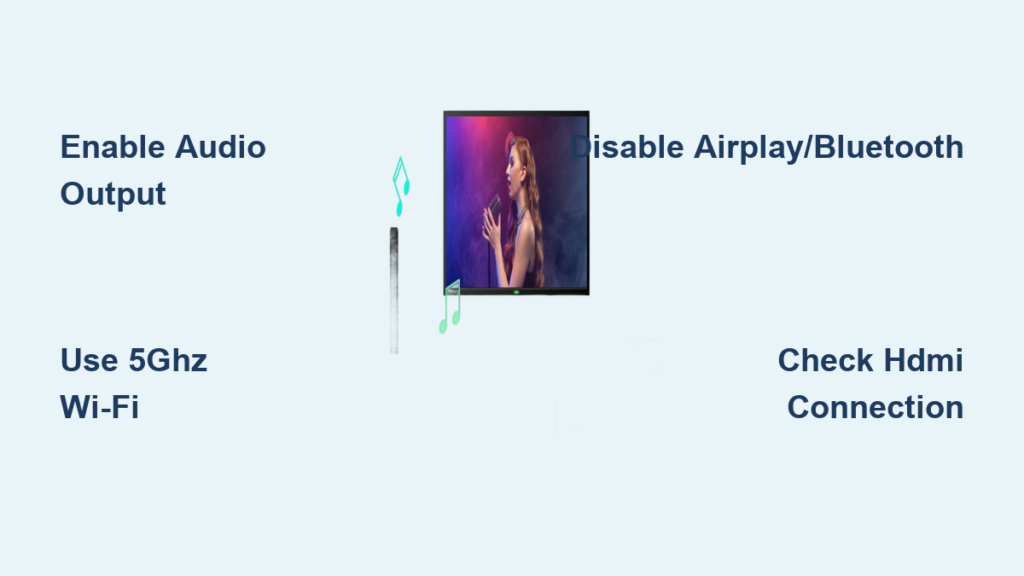
Pro Tip: Disable AirPlay and Bluetooth on both your source device and TV to prevent wireless signals from overriding the wired audio connection.
AUX Connection from TV to External Speakers
If your TV has a headphone jack or optical output, you can route sound to external speakers.
Simple AUX setup:
- Connect a 3.5mm audio cable from the TV’s headphone output to the speaker’s AUX input
- Play mirrored content on the TV
- The video displays on TV while audio plays through the external speaker
This low-cost solution works well for small venues or home use.
Device-Specific Audio Mirroring Setup
Each platform handles audio differently during screen mirroring. Know your device’s capabilities and limitations.
iPhone and iPad AirPlay Configuration
AirPlay mirrors both screen and audio by default, but you can customize output.
Tips for better audio control:
- Use AirPlay 2 for multi-room audio options
- In Control Center, touch and hold the AirPlay icon to select different audio devices
- If using wired speakers, disable AirPlay on your TV to prevent automatic switching
When AirPlay is active, iOS may restrict other audio outputs. Turn off AirPlay in TV settings if you need to use external speakers.
Android Cast Settings
Full screen mirroring doesn’t always include system audio on Android devices.
How to enable audio during mirroring:
- Pull down Quick Settings and tap Cast or Smart View (Samsung)
- Look for “Cast screen/audio” or similar option
- Enable it before connecting if available
Some Android devices only support audio from specific apps, not system-wide sounds. For reliable audio, use app-based casting instead of full screen mirroring.
Windows PC Audio Management
Miracast sends full audio to your display, but you can redirect it afterward.
Change audio output after mirroring:
- Press Win + K to connect via Miracast
- Right-click the sound icon in your taskbar
- Go to Sounds, then Playback tab
- Select your preferred speaker as the default device
This lets you switch from TV speakers to headphones or external audio systems.
Essential Hardware for Audio-Enabled Mirroring

The right accessories make audio routing much easier.
HDMI Audio Extractor
An HDMI audio extractor separates audio from the HDMI signal and sends it to amplifiers or speakers.
Choose based on:
- HDMI version compatibility (4K, HDR support)
- Audio output type (3.5mm, optical, RCA)
- Power source requirements
This device is ideal for classrooms, conferences, and live events where you need separate audio control.
Bluetooth Transmitter
Turn any TV into a Bluetooth audio sender with a transmitter.
How to use it:
- Plug the transmitter into the TV’s audio output
- Pair with your Bluetooth speaker or headphones
- Play mirrored content and sound streams wirelessly
This works great for older TVs without built-in Bluetooth.
Troubleshooting Common Audio Issues
Even with correct setup, problems can occur. Here’s how to fix them fast.
No Sound During Mirroring
Likely causes:
- Wrong audio output selected on TV or device
- AirPlay or Bluetooth overriding the connection
- App doesn’t support system audio
Fix it:
- Check TV audio output settings and verify the correct input is selected
- On your device, ensure “Play audio” is enabled in mirroring settings
- Disable conflicting services like AirPlay and Bluetooth
Audio Lags Behind Video
Cause: Processing delay in the TV or speaker.
Solutions:
- Enable Game Mode or Low Latency Mode on your TV
- Use Bluetooth speakers with aptX Low Latency support
- Adjust AV sync settings in your TV sound menu
Audio Cuts Out During Playback
Cause: Wi-Fi interference or network congestion.
Fix it:
- Move closer to your router
- Switch to 5GHz Wi-Fi for less interference
- Close bandwidth-heavy apps running in the background
External Speaker Not Receiving Sound
Cause: Pairing failure or audio priority conflict.
Steps to fix:
- Re-pair the Bluetooth speaker with your TV
- Set audio output to Bluetooth in TV settings
- Disable AirPlay and other wireless audio options
Wired Audio Overridden by Wireless
Smart TVs often auto-switch to AirPlay or Bluetooth when detected.
Prevent it:
- Turn off AirPlay and Bluetooth in TV settings
- Use airplane mode on your source device (except for Wi-Fi)
- Check cable connections to ensure they haven’t become loose
Best Practices for Seamless Audio Mirroring
Follow these tips to ensure smooth, hassle-free screen mirroring with audio every time.
Use 5GHz Wi-Fi for Wireless Casting
The 5GHz band offers faster speeds and less interference than 2.4GHz.
How to switch:
- Access your router settings
- Assign devices to the 5GHz network
- Name it differently (like “Home-5G”) for easy identification
Update All Devices and Adapters
Outdated firmware can break audio mirroring functionality.
Check for updates on:
- TV system software
- Phone or tablet operating system
- Chromecast, Miracast adapter, or Apple TV
Updates often fix audio sync and compatibility issues.
Test Audio Before Presenting
Avoid awkward silence during important meetings or events.
Quick test procedure:
- Play a short audio clip on your device
- Confirm sound comes from the correct speaker
- Adjust volume levels on both the device and speaker
Disable Conflicting Audio Protocols
Prevent automatic switching by turning off unused wireless services.
On smart TVs, disable:
- AirPlay (when using HDMI audio)
- Bluetooth (when using wired speakers)
- CEC (if causing unwanted input switching)
Use High-Quality Cables and Adapters
Cheap cables can cause dropouts or complete audio failure.
Invest in:
- Shielded HDMI cables for long runs
- Powered HDMI splitters
- Brand-name adapters from trusted manufacturers
Frequently Asked Questions About Screen Mirroring with Audio
Why is there no sound when I screen mirror?
The most common reason is that the audio output is set to the wrong device. Check your TV or receiver audio settings and ensure the correct input or output is selected. Also verify that AirPlay or Bluetooth isn’t overriding the connection.
Can I screen mirror with audio to a Bluetooth speaker?
Yes, you can. After initiating AirPlay mirroring to your TV, go into the TV’s sound settings and change the audio output to your paired Bluetooth speaker. This works on select TVs with Bluetooth audio output support, like some Sony and LG models.
Does Chromecast support audio during screen mirroring?
Chromecast supports audio during casting, but full system audio mirroring may not work on all Android devices. App-specific casting (like casting YouTube or Netflix) is more reliable than full screen mirroring for audio transmission.
How do I fix audio delay when screen mirroring?
Enable Low Latency Mode or Game Mode on your TV to reduce processing delay. If using Bluetooth speakers, choose ones with aptX Low Latency support. You can also adjust AV sync settings in your TV sound menu.
Can I use HDMI to separate audio from video?
Yes, use an HDMI audio extractor. It takes one HDMI input and splits it into HDMI for video and a separate audio output (3.5mm or optical) for speakers or amplifiers.
Why does wired audio get overridden by wireless?
Smart TVs often automatically switch to AirPlay or Bluetooth when those signals are detected. Disable AirPlay and Bluetooth in your TV settings when using wired audio connections to prevent this override.
Key Takeaways for Screen Mirroring with Audio
Getting sound to play during screen mirroring requires knowing your device’s audio routing options and avoiding common conflicts. Wireless methods like AirPlay, Google Cast, and Miracast all support audio transmission, but you may need to adjust output settings or disable competing protocols. For the most reliable experience, especially for presentations or events, wired HDMI connections with an audio extractor provide stable, high-quality results. Remember to test your audio setup before going live, keep your devices updated, and use 5GHz Wi-Fi for wireless connections to minimize interference. With the right configuration, you can enjoy perfect video and sound every time you mirror your screen.