You’re in the middle of a private call, reviewing sensitive documents, or just browsing your phone when suddenly your screen appears on the TV. Accidental screen mirroring happens more often than you think. Whether your iPhone, Mac, Android, or Windows device is broadcasting to a smart TV, projector, or AV system, knowing how to stop screen mirroring fast is essential for privacy and control.
This guide gives you step-by-step instructions for every major platform, troubleshooting tips when “Stop Mirroring” doesn’t appear, and proven ways to prevent unwanted connections. No fluff, just clear, actionable steps to regain control of your screen.
Stop iPhone Screen Mirroring Fast
Use Control Center to Disconnect
If your iPhone or iPad is mirroring to an Apple TV or AirPlay 2-compatible display, you can stop it in seconds through Control Center.
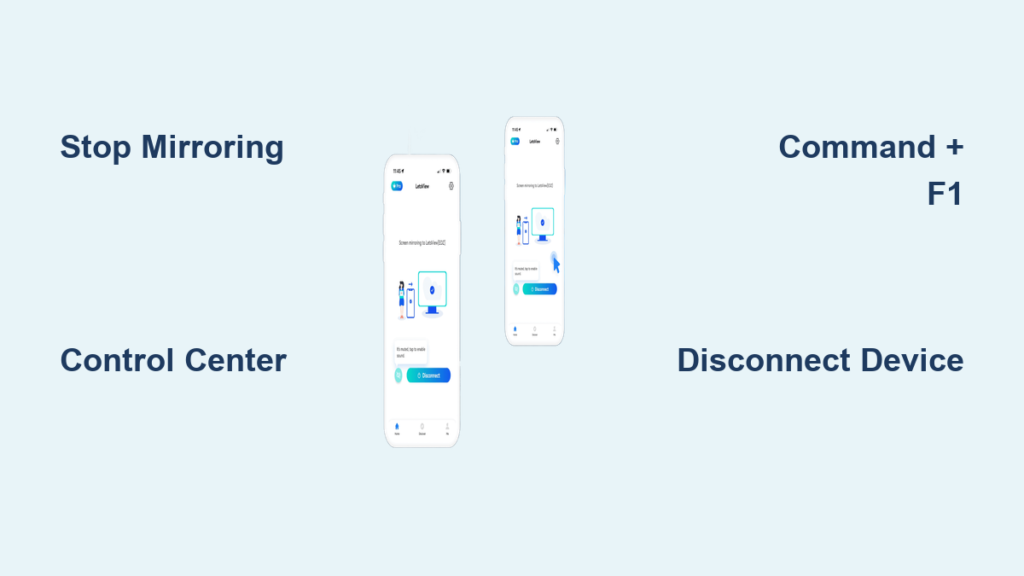
Open Control Center by swiping down from the top-right corner on Face ID models (iPhone X and later) or from the bottom edge on Touch ID models (iPhone 8 and earlier). Tap the Screen Mirroring tile, which shows a rectangle with an upward arrow. If a device is connected, tap Stop Mirroring at the bottom of the list.
The mirroring session ends instantly. The blue AirPlay icon in the status bar disappears, confirming the disconnection.
Stop Mirroring via Settings
If Control Center doesn’t show the Screen Mirroring option, use Settings as a fallback.
Open Settings, then tap General. Select AirPlay & Handoff (or AirPlay & Continuity on newer iOS versions). If a device is actively mirrored, tap Stop Mirroring.
Make sure the Screen Mirroring tile is added to Control Center by going to Settings, Control Center, and adding Screen Mirroring if it’s missing.
Prevent Accidental iPhone Mirroring
Disable Auto-AirPlay Suggestions
Stop your iPhone from suggesting nearby TVs automatically.
Go to Settings, General, then AirPlay & Handoff. Under Automatically AirPlay to TVs, choose Ask to get prompts before connecting, or select Never to block automatic detection entirely.
Selecting Never provides the best privacy protection. This prevents pop-ups and accidental taps that trigger mirroring when you don’t intend to share your screen.
Update iOS via Settings, General, Software Update if this option is missing. Older iOS versions may not show the automatic AirPlay setting.
End Mac Screen Mirroring Immediately
Use Keyboard Shortcut to Toggle
The fastest way to stop mirroring on any MacBook or Mac is a simple keyboard shortcut.
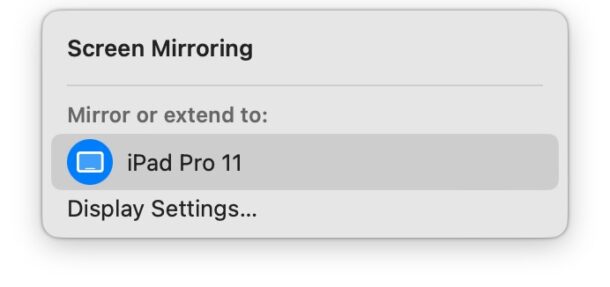
Press Command + F1 on standard keyboards. On MacBooks with Touch Bar, press Command + the brightness down key instead.
This shortcut toggles between mirroring and extended display modes, giving you instant control without navigating through menus.
Stop Mirroring in System Settings
For macOS Ventura and later, use System Settings for a visual approach.
Click the Apple menu in the top-left corner, then select System Settings. Go to Displays in the sidebar. Select the external display connected to your Mac. Choose Use As: Separate Display or click Disconnect to end mirroring.
Some professional AV equipment (like certain video switchers) may force mirroring over HDMI due to HDCP or EDID compatibility requirements. Check your cable and device compatibility if options are limited.
Fix Missing Display Menu on Mac
Restore the Menu Bar Icon
If the display icon vanishes from the menu bar after sleep or an OS update, you can restore it.
Open System Settings, then go to Control Center. Under Displays, ensure Show in Menu Bar is enabled. If the icon is still missing, reboot your Mac.
One MacBook Pro user (M1 Max, Ventura 13.7.2) reported that restarting restored the menu bar icon after it disappeared following a software update. This confirms it’s often a temporary OS bug rather than a permanent issue.
Turn Off Android Screen Mirroring
Stop via Quick Settings Panel
Android devices offer quick access to stop mirroring through the Quick Settings panel.
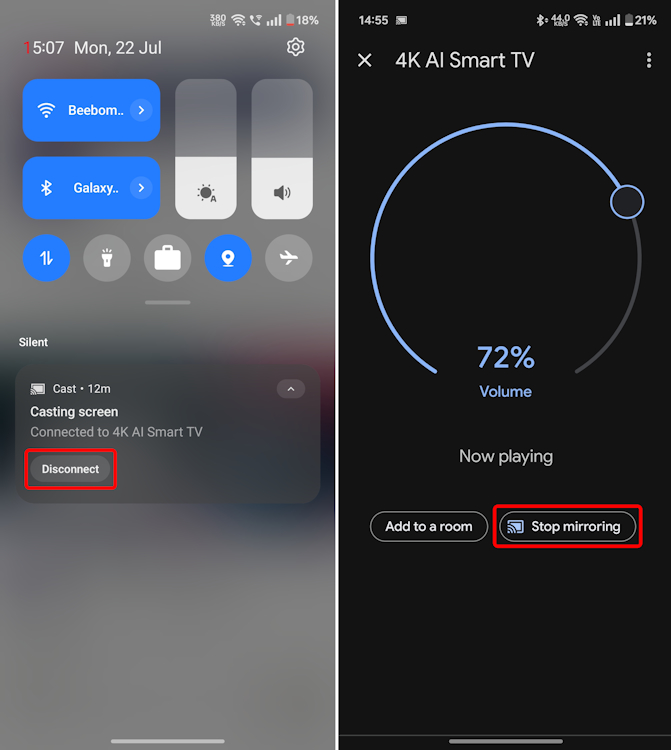
Swipe down once, then swipe down again to open the full Quick Settings panel. Look for Cast, Smart View (on Samsung devices), Screen Mirroring, or Wireless Display. Tap the active tile and select Disconnect or Stop Mirroring.
Samsung users will find Smart View appears only when a compatible Samsung TV or display is nearby.
Stop Mirroring in Settings
Use Settings for a more thorough disconnection.
Open Settings, then navigate to Connected Devices (or Bluetooth & Devices on some versions). Find the connected external display under the list of connected devices. Tap the device name and select Disconnect.
If the connection persists, go to Settings, Connected Devices, tap the device name again, and choose Disconnect as a fallback step.
Stop Windows Screen Mirroring Now
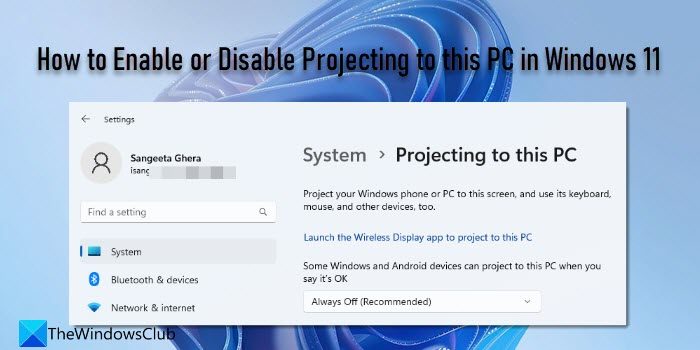
Use Keyboard Shortcut to Disconnect
Windows offers a fast keyboard shortcut for instant disconnection.
Press Windows + K to open the Project or Cast menu. Select Disconnect from the active device.
This method works reliably even during presentations when you need to stop mirroring quickly.
Stop Mirroring in Settings
Use Settings for a visual approach to end mirroring.
Open Settings, go to System, then Display. Scroll to the Multiple displays section. Click Disconnect under the wireless display listing.
Remember that Windows uses Miracast, Google Chrome casting, or third-party apps like AirParrot for screen mirroring. Make sure you’re disconnecting the correct protocol.
Prevent Unwanted Screen Mirroring
Turn Off Auto-Detection on iOS
Prevent your iPhone from automatically suggesting nearby TVs.
Go to Settings, General, AirPlay & Handoff. Set Automatically AirPlay to TVs to Never.
This stops pop-up suggestions that lead to accidental taps and TV wake-ups in multi-device households.
Disable Android Auto-Scan
Turn off automatic scanning features on Android devices.
Keep Cast, Smart View, or Screen Mirroring toggles in Quick Settings turned off when not in use. Disable background scanning in Settings, Connected Devices, Connection Preferences if the option is available.
Hide Mac Mirroring Options
Reduce mirroring prompts on Mac.
Go to System Settings, Displays, then Advanced. Uncheck Show mirroring options in menu bar to reduce visual prompts, though this doesn’t disable AirPlay entirely.
Block Others from Mirroring to Your Mac
Prevent unauthorized devices from casting to your Mac.
Open System Settings, go to General, then AirDrop & Handoff. Turn off AirPlay Receiver.
This prevents coworkers or family members from mirroring to your Mac without your permission.
Troubleshoot: Can’t Stop Screen Mirroring?
No “Stop Mirroring” Option Appears
On Mac, Control Center may show Use as Separate Display instead of Stop Mirroring. Use Command + F1 to toggle mirroring off, or disconnect at the TV or receiver end.
On iPhone, ensure Screen Mirroring is added to Control Center through Settings, Control Center. If it’s missing, add it to restore quick access.
Screen Mirroring Won’t Disconnect
When standard methods fail, try these troubleshooting steps.
Restart both the source device and the receiver (TV, Apple TV, Chromecast). Turn off Wi-Fi or Bluetooth temporarily to break the wireless connection. Power off the TV or receiver by unplugging it. Unplug HDMI or USB-C cables if applicable.
During time-sensitive presentations, keep a spare HDMI cable or power switch nearby. Physical disconnection is the most reliable fix when software methods fail.
Stop Mirroring for Privacy and Security
Risks of Accidental Sharing
Screen mirroring can expose sensitive information unintentionally.
Banking details, passwords, and personal messages become visible on larger screens. Network spoofing on public Wi-Fi can allow unauthorized access. AV equipment in meetings may record or broadcast without warning.
A real case involved a user who mirrored their laptop while checking email in a conference room. Colleagues saw personal messages on the shared display, creating an awkward situation.
Best Security Practices
Protect your privacy when using screen mirroring.
Stop mirroring before entering passwords or accessing banking information. Avoid mirroring on public Wi-Fi networks. Name your devices clearly (like “Bedroom TV”) to avoid connecting to the wrong one. Forget old devices in AirPlay or Cast settings to prevent reconnection. Update all devices regularly to benefit from security patches.
Why Mirroring Keeps Disconnecting
Common Causes
Several factors cause mirroring to drop unexpectedly.
Weak Wi-Fi signal creates instability. Network congestion from multiple devices affects performance. Device overheating triggers automatic disconnection. Outdated firmware on TVs or receivers causes compatibility issues.
Fixes for Stable Connections
Improve your mirroring experience with these solutions.
Restart both devices to clear temporary glitches. Move closer to the router for better signal strength. Close background apps that consume bandwidth. Use wired HDMI or USB-C connections instead of wireless for critical presentations.
For lectures or meetings, use a cable instead of wireless. This eliminates dropouts and surprise disconnections entirely.
Can Someone Mirror Your Screen Without Permission?
Understanding the Risks
Generally, screen mirroring requires user initiation.
AirPlay, Cast, and Miracast all require explicit permission through pop-up approval. Your device must actively accept the connection request before mirroring begins.
However, risks exist if your device is compromised or a hacker spoofs a trusted device on your network. Keep devices updated, use strong passwords, and disable auto-connect features to minimize these risks.
Summary: Stop Screen Mirroring by Device
| Device | Method | Action |
|---|---|---|
| iPhone | Control Center | Swipe down, tap Screen Mirroring, tap Stop Mirroring |
| iPhone | Settings | Settings, General, AirPlay & Handoff, tap Stop Mirroring |
| Android | Quick Settings | Double swipe, tap Cast or Smart View, select Disconnect |
| Android | Settings | Settings, Connected Devices, tap device, tap Disconnect |
| Mac | Keyboard | Command + F1 to toggle mirroring |
| Mac | System Settings | Apple menu, System Settings, Displays, select Separate Display |
| Windows | Keyboard | Windows + K, select Disconnect |
| Windows | Settings | Settings, System, Display, click Disconnect |
| All Devices | Emergency | Restart device or power off receiver |
Frequently Asked Questions About Stopping Screen Mirroring
How do I stop screen mirroring on my iPhone?
Open Control Center by swiping down from the top-right corner. Tap the Screen Mirroring tile, then select Stop Mirroring. Alternatively, go to Settings, General, AirPlay & Handoff, and tap Stop Mirroring if a device is connected.
Why can’t I find the “Stop Mirroring” option on my Mac?
On macOS, the option may appear as “Use as Separate Display” instead of “Stop Mirroring.” Press Command + F1 to toggle mirroring off, or go to System Settings, Displays, and select Separate Display for the connected device.
Can screen mirroring work without Wi-Fi?
Generally no, but some technologies support peer-to-peer connections. Miracast and AirPlay Direct allow device-to-device streaming without a router. Most standard implementations require both devices on the same Wi-Fi network.
Does screen mirroring drain battery quickly?
Yes, wireless transmission and screen processing significantly increase power consumption. Expect faster battery drain when mirroring is active, especially over longer sessions.
Why does my screen mirroring keep disconnecting?
Weak Wi-Fi signal, network congestion, software bugs, or device overheating commonly cause disconnections. Restart both devices, ensure they’re close to the router, and close bandwidth-heavy apps running in the background.
Can someone mirror to my screen without me knowing?
Not typically. AirPlay, Cast, and Miracast require user initiation and explicit permission through pop-up prompts. However, compromised devices or network spoofing could pose risks. Keep your software updated and disable auto-connect features for better security.
Key Takeaways for Stopping Screen Mirroring
Always stop screen mirroring manually after each use to prevent accidental exposure. Disable auto-detection features on all devices by exploring Settings, General, AirPlay & Handoff on iOS, and similar menus on Android and Windows. This prevents surprise connections when you don’t intend to share your screen.
If mirroring won’t stop through normal methods, reboot both devices or disconnect physically by unplugging the receiver. This is the fastest, most reliable fix when software controls fail. For professional presentations, keep HDMI cables or a power switch within reach as a backup plan.
Label your devices clearly (like “Living Room TV” or “Conference Display”) to avoid connecting to the wrong screen. Test your setup before important meetings or presentations to ensure everything works smoothly. Stay in control of your screen, your data, and your privacy by making these habits part of your routine.