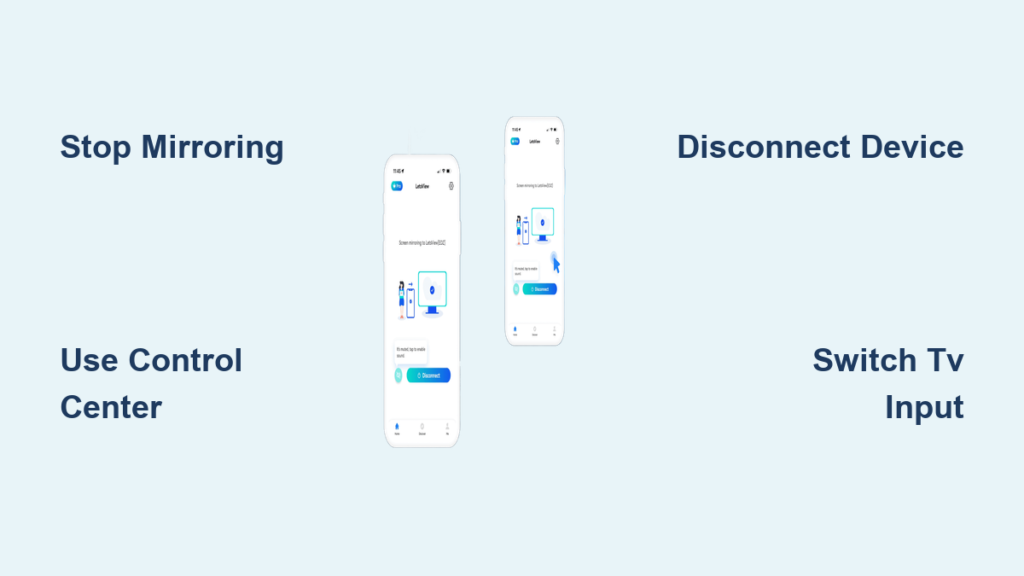
You’re wrapping up a presentation, finishing a movie night, or just noticed your phone is broadcasting to the TV. Now you need to stop screen mirroring fast. Leaving it on accidentally risks exposing private messages, passwords, or work files to anyone nearby. Worse, it drains battery, slows performance, and can auto-reconnect without warning.
The good news: turning off screen mirroring is simple once you know where to look, whether you’re using an iPhone, Android phone, Mac, or Windows PC. This guide gives you exact steps for every platform, plus fixes for common issues like missing controls, stuck connections, and unwanted reconnections.
Stop Mirroring on iPhone & iPad
Use Control Center to Disconnect
To instantly stop screen mirroring on iOS, open Control Center first. On Face ID devices, swipe down from the top-right corner. On Home button devices, swipe up from the bottom.
Once Control Center is open, tap the Screen Mirroring or AirPlay icon, which looks like a rectangle with a triangle inside. Select Stop Mirroring at the bottom of the list.
Visual clue: A blue AirPlay icon in the status bar means mirroring is active.
Stop Automatic Reconnection
Prevent your iPhone from reconnecting to TVs automatically by changing a few settings. Go to Settings, then General, then AirPlay & Handoff. Set Automatically AirPlay to TVs to Never. Disable Handoff if you do not use Apple ecosystem handoffs.
Note: On iOS 17+, some users report slight layout changes, but the core steps remain the same.
Fix Missing Screen Mirroring Option
If the tile does not appear in Control Center, add it manually. Go to Settings, then Control Center, then Customize Controls. Tap the plus sign next to Screen Mirroring to add it.
Check that AirPlay & Handoff is enabled under Settings, then General. If the connection hangs, restart both your iOS device and the TV or Apple TV.
End Mirroring on Mac
Disconnect via Control Center
The fastest method on modern macOS uses Control Center. Click the Control Center icon in the menu bar. Select Screen Mirroring. Choose the connected device and click Disconnect.
Use System Settings to Stop Mirroring
For full control, click the Apple menu and select System Settings. Go to Displays. Click the dropdown next to the display diagram. Select Use as Separate Display or uncheck Mirror Built-in Display.
After disconnecting: The external screen becomes an extended desktop unless reset.
Restore Missing Menu Bar Icon
Some users lose the display icon after macOS Ventura updates. Rebooting the Mac often restores the menu bar option. Reconnect the cable while powered on, then use System Settings to manually disable mirroring.
Try SwitchResX for advanced display management on M1/M2 Macs.
Switch TV Input After Disconnect
Your TV may stay blank after stopping mirroring. Use the remote to switch back to the correct input, such as HDMI 1 or Apple TV.
Turn Off Mirroring on Android
Stop from Quick Settings
The fastest way to disconnect uses Quick Settings. Swipe down once, then swipe down again to expand the full panel. Tap Cast, Smart View, or Screen Mirroring. If connected, tap the device name and select Disconnect or Stop Mirroring.
Visual cue: A solid filled Cast icon means mirroring is active.
Use Settings for Full Control
If Quick Settings fails, open Settings, then Connected Devices, then Connection Preferences. Tap Cast, Screen Mirroring, or Smart View. Under Active Connections, tap the device and choose Disconnect.
Brand-Specific Paths
Labels vary by manufacturer. Samsung users should check Settings, then Connections, then Smart View. Google Pixel users can access Quick Settings, then Cast, then Stop. OnePlus users find it under Settings, then Connected Devices, then Screen Mirroring. LG and Sony devices typically use Settings, then Network, then Screen Share or Screen Mirroring.
Disable Mirroring on Windows
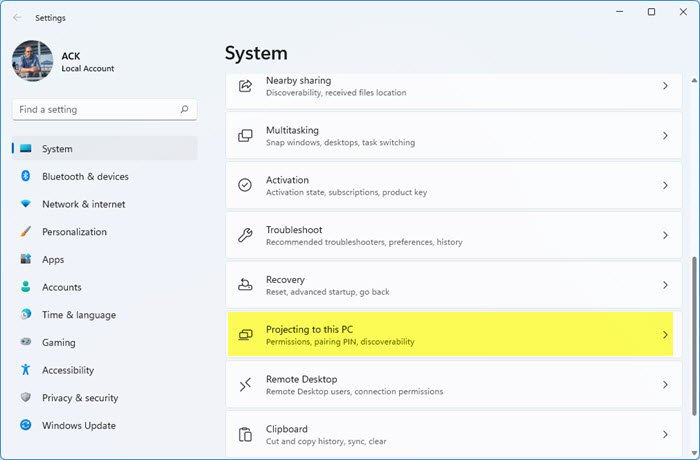
Use Keyboard Shortcut
The quickest method uses the Win and P keys together. Press Win + P to open the Project menu. Select PC screen only to disconnect all external displays.
Other options include: Duplicate for mirroring, Extend for using the second screen as extra workspace, and Second screen only to hide content from the main screen.
Disconnect via Settings
Open Settings, then System, then Display. Scroll to Multiple displays. Click Disconnect if a wireless display is active.
Use Action Center
Press Win + A or click the Action Center icon in the taskbar. Tap Project or Connect. Choose PC screen only or Disconnect.
Requirements for Miracast
Windows uses Miracast for wireless mirroring. Both devices must support Miracast. They must be connected to the same Wi-Fi network. Wi-Fi must be enabled, even for peer-to-peer connections.
Stop Mirroring from TV or Receiver
Sometimes the display side must disconnect. On Apple TV, go to Settings, then Remotes and Devices, then Screen Mirroring. Set it to Ask to Join or disable Allow Others to Use Screen Mirroring.
On Smart TVs from Samsung, LG, and others, use the remote to exit mirroring mode. Manually switch the input source back to HDMI 1 or your regular TV source.
On projectors and video mixers, devices like Roland V-40HD may default to mirroring. Disable this via source device settings or input selection.
Critical: Always switch the TV input manually after stopping mirroring. Otherwise, the screen stays black.
Fix Common Mirroring Problems
Cannot Find Stop Mirroring Option
Possible causes include outdated OS, interface changes, or software bugs. Update your device’s operating system. Restart both source and display devices. Reconnect, then try disconnecting again. Use Settings instead of Quick Controls as an alternative.
Mirroring Will Not Turn Off
Force restart both devices. Force quit casting apps like Google Home or Samsung Smart View. Forget the device in Wi-Fi or Bluetooth settings. On Apple TV, disable Screen Mirroring in Settings, then Remotes and Devices.
Keeps Reconnecting Automatically
Auto-connect is likely enabled. On iOS, set Automatically AirPlay to TVs to Never. On Android, turn off Auto-connect to cast devices in Cast settings. On Windows, disable Automatically connect to suggested wireless displays in Display settings.
Device Not Appearing or Stuck
Check that both devices are on the same Wi-Fi network. Verify AirPlay, Cast, or Miracast is enabled on the receiver. Disable AP isolation on your router, which blocks device discovery. Ensure firewall or antivirus software is not blocking the connection.
Restart your router if multiple devices fail to connect.
Performance Lag or Overheating
Mirroring uses heavy bandwidth and CPU. Stop mirroring when not in use. Avoid long sessions to reduce battery drain, which can be up to 40% faster. Close unused apps to free system resources.
Protect Privacy and Security
Risks of Leaving Mirroring On
Anyone nearby can see your screen. Messages, banking logins, and emails are visible in real time. Compromised devices could record your activity. A user reported that a public TV mirroring session allowed a stranger to watch their bank login and initiate a transfer.
Best Privacy Practices
Turn off before sensitive tasks like email, banking, or work apps. Only mirror in private spaces, avoiding cafes, offices, and shared rooms. Verify device names and do not trust Living Room TV if you are unsure. Avoid untrusted displays like public projectors or rental equipment.
Enable auto-disconnect if available. Use strong Wi-Fi passwords to prevent unauthorized network access. Enable two-factor authentication on critical accounts. Install OS updates, which often patch security flaws in AirPlay and Cast.
Platform Comparison
| Platform | Primary Method | Secondary Method | Key Tip |
|---|---|---|---|
| iOS | Control Center, Stop Mirroring | Settings, AirPlay & Handoff, Never Auto-Play | Blue AirPlay icon equals active |
| macOS | Control Center, Disconnect | Displays, Use as Separate Display | Reboot if menu bar icon vanishes |
| Android | Quick Settings, Cast, Disconnect | Settings, Connected Devices, Disconnect | Label varies by brand |
| Windows | Win + P, PC screen only | Settings, Display, Disconnect | Requires Miracast and same Wi-Fi |
Frequently Asked Questions About Turning Off Screen Mirror
How do I know if mirroring is active?
On iPhone, look for a blue AirPlay icon in the status bar. On Mac, check for the Screen Mirroring icon in the menu bar or Control Center. On Android, a solid filled Cast icon in Quick Settings means active. On Windows, Win + P shows active projection.
Can I mirror without Wi-Fi?
Generally no, but exceptions exist. Some Android devices use Wi-Fi Direct. Apple supports peer-to-peer AirPlay, though Wi-Fi must still be on. Wired HDMI or USB-C connections require no Wi-Fi at all.
Why does my TV stay black after stopping?
The TV does not automatically switch inputs. Use your remote to select the correct source, such as HDMI 1 or Apple TV.
Can someone connect to my device without permission?
AirPlay defaults to Ask to Join unless set to Everyone on the same network. Android and Windows vary, with some allowing open connections. Set to Ask to Join or disable when idle for best security.
Does mirroring slow down my device?
Yes. It causes lag, battery drain, heat, and reduced performance. Turn it off when not in use.
Key Takeaways for Turning Off Screen Mirror
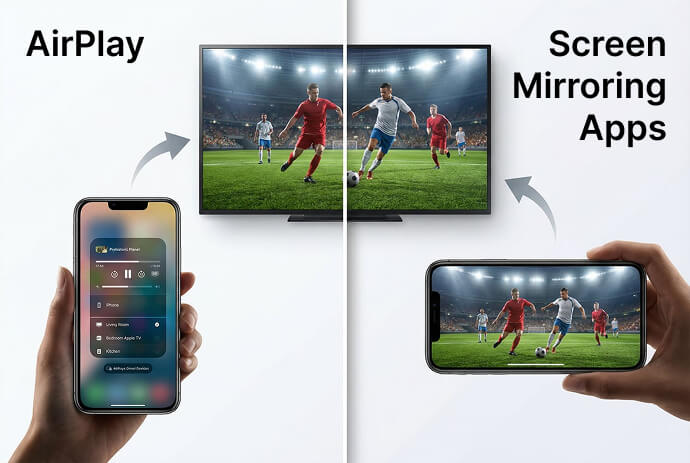
Turning off screen mirroring is about control, privacy, and performance. Whether you are on iOS, Android, Mac, or Windows, the solution is within reach.
On iPhone or iPad, use Control Center, then Screen Mirroring, then Stop. On Mac, use Control Center or System Settings to Disconnect. On Android, use Quick Settings, then Cast or Smart View, then Disconnect. On Windows, press Win + P and select PC screen only.
Always verify the receiving device before connecting. Disable auto-reconnect features in your settings. Manually switch TV inputs when needed. Update devices regularly, educate others, and make disconnection a habit.
With these steps, you will never leave your screen exposed again. Every mirroring session can end securely, smoothly, and under your control.