
A cracked iPhone 15 back glass can quickly turn from a cosmetic issue into a serious problem. Sharp shards pose injury risks, while exposed internals invite moisture damage and component failure. The good news is that replacing the back glass on this model does not require removing the logic board or battery, making it one of the more accessible DIY repairs for advanced users.
This guide covers every stage of the iPhone 15 back glass repair process, from gathering tools and applying controlled heat to reconnecting internal components and calibrating your device on iOS 18+. You will also learn the critical depth limits, screw specifications, and pressure-curing techniques that separate a lasting fix from a costly mistake.
Gather the Right Tools and Materials
Using improper drivers or overheating the device can cause irreversible damage. Before starting, confirm you have every item below.
Essential Toolkit
• P2 Pentalobe Driver for the two 7.7 mm screws near the charging port
• Tri-point Y000 Driver for internal connector cover screws
• Heat Source such as an iOpener, heat gun, or hair dryer
• Opening Picks for sliding along edges and breaking adhesive
• Tweezers for handling small screws and connector covers
• Spudger for prying connectors safely
• Suction Cup for lifting the glass once an edge is loosened
Replacement Parts and Supplies
• iPhone 15 Back Glass (genuine or high-quality aftermarket)
• Pre-Cut Adhesive Frame matched to your device
• Packing Tape to secure shattered glass shards
• Stacking Weights such as coins for curing pressure
Pro Tip: Use a magnetic mat to organize screws and prevent mix-ups during disassembly.
Prepare Your Workspace and Device Safely
Skipping preparation increases the risk of injury and component damage. Take a few minutes to set up properly.
Power Down and Clear the Area
Turn off your iPhone completely before starting. Work on a clean, flat surface free of dust and static. A cluttered workspace raises the chance of dropping small parts or damaging fragile connectors.
Stabilize Cracked Glass
If the back glass is shattered, cover it with overlapping strips of packing tape. This holds loose fragments in place and prevents cuts during handling.
Critical Constraint: Leave a small, smooth area near the bottom edge free of tape so your suction cup or opening pick can adhere properly.
Label Your Opening Picks
Use a marker or colored tape to label each pick by the edge it will be used on. This prevents confusion during reassembly and helps maintain consistent depth control.
Remove the Pentalobe Screws
The first physical step is removing the two screws at the base of the device.
Locate and Unscrew
Position the iPhone with the screen facing up. At the bottom edge, flanking the charging port, locate the two P2 pentalobe screws. Using the correct driver, remove both 7.7 mm-long screws and place them on a labeled mat.
Warning: Do not force the driver. Stripped screws complicate reassembly and may require extraction tools.
These screws only secure the outer casing and will not be reused until final reassembly.
Apply Heat to Loosen the Adhesive
The back glass is bonded to the frame with strong adhesive. Controlled heat softens this bond without damaging the battery.
Heat the Bottom Edge
Set your heat gun or hair dryer to medium heat, roughly 100 to 110°C. Focus on the bottom edge of the phone for 60 to 90 seconds until the glass feels hot to the touch.
Never overheat: Excessive heat near the center risks thermal damage to the lithium-ion battery, which can swell or fail.
Avoid heating the screen side. The back glass expands slightly when heated, helping break the adhesive bond more easily.
Separate the Bottom Edge
Once heated, begin prying the glass from the frame using an opening pick.
Insert and Slide Gently
Attach the suction cup to the tape-free zone on the bottom edge. Pull upward slightly to create a small gap. Insert a plastic opening pick into the seam and slowly slide it along the bottom edge to sever the adhesive.
Visual Cue: You will feel resistance as the adhesive stretches. Continue sliding until the pick reaches both corners.
Replace the pick if it shows signs of wear. A dull or bent tool can slip and damage internal shielding.
Navigate the Right Edge With Depth Control

The right edge (volume button side) contains sensitive internal components. Depth control here is critical.
Heat and Rotate Around the Corner
Reapply heat to the bottom-right corner and right edge. Insert the pick and rotate it around the corner. Slide the pick upward toward the volume buttons, but do not insert deeper than 4 mm.
Why 4 mm?: Deeper insertion risks cutting the wireless charging coil cable or damaging the Taptic Engine.
Mark your pick at 4 mm to ensure consistent depth. If resistance increases, stop and reheat before continuing.
Clear the Left and Top Edges
With the bottom and right sides separated, proceed to the remaining edges.
Left Edge Separation
Heat the left edge until hot to the touch. Insert a fresh pick and slide it upward along the full length. No depth restrictions exist here, but maintain steady pressure to avoid sudden pops that could crack remaining glass.
Top Edge Work
Heat the top edge near the camera module. Slide the pick horizontally from left to right. Take extra care near the rear camera cutout, where adhesive is often thicker. Reheat as needed.
Disconnect Internal Components
After all edges are free, disconnect internal components before fully removing the back glass.
Remove the Lower Connector Cover
Locate the lower connector cover near the charging port. Remove two 1.3 mm-long screws using the Tri-point Y000 driver. Use tweezers to slide the cover toward the top of the phone to unlatch it, then remove it.
Disconnect the Battery First
Always disconnect the battery before working near high-voltage components. Use an opening pick to gently pry up the battery connector from its socket on the logic board.
Never lift with metal tools directly on the logic board. This can cause short circuits.
Remove the Middle Connector Cover
Above the lower cover, find the middle connector cover. Remove the single 0.9 mm screw, then use the flat end of a spudger to push the cover downward, unclipping the top edge. Lift it off and set aside.
Disconnect the Wireless Charging Coil
With both covers removed, locate the wireless charging coil and NFC connector. Use the pick to gently lift this connector from the logic board. Now carefully lift the back glass assembly away from the frame.
Clean the Frame and Install New Adhesive
A clean frame ensures strong adhesion and water resistance.
Remove Old Adhesive Completely
Peel off all remnants of the old adhesive from the aluminum frame. Use isopropyl alcohol (90% or higher) and a lint-free cloth to wipe the surface clean. Let it dry fully.
Align the New Adhesive Correctly
Lay the pre-cut adhesive frame next to the phone. Match the cutouts for the rear camera module and spring contact points. Press the adhesive firmly onto the frame, starting at the bottom edge, then work around the sides and top.
Note: Some kits split the liner into sections. Know which part comes off first to avoid confusion.
Reconnect Internals Before Final Closure
Before installing the new back glass, reconnect key components while the phone is open.
Support the Device Properly
Prop the iPhone upright using a small box or stand. This keeps the screen stable while allowing access to the back.
Connect the Wireless Charging Coil First
Align the coil connector over its socket. Press one side down, then the other, until you feel a click. Do not force it. Misalignment can damage the flex cable.
Reconnect the Battery Connector
Repeat the process for the battery connector. Press gently until seated.
Checklist: Both connectors should lie flat with no gaps.
Reinstall the Connector Covers

Proper cover placement protects connectors and prevents shorts.
Middle Cover Installation
Place the middle cover over the coil connector. Let the bottom clip hang slightly below the logic board slot. Press down and slide upward until both metal clips snap into place. Secure with the 0.9 mm Tri-point Y000 screw.
Lower Cover Reassembly
Hook the top edge of the lower cover into its logic board slot using tweezers. Lay it flat over both connectors and secure with two 1.3 mm screws.
Warning: Using longer screws here can pierce the logic board. Double-check lengths before tightening.
Remove the Final Adhesive Liners
Now that internals are connected, remove the last adhesive liners.
Peel Bottom Tabs First
Pull the pull tabs at the bottom edge to remove the narrow liner along the left and top edges.
Access Right Edge Liners
Hold the new back glass above the phone without letting it touch the adhesive. Use tweezers or fingers to remove the remaining liners along the right edge.
Why delay this step?: Premature liner removal risks accidental contact with dust or fingerprints.
Install the New Back Glass
With liners gone, it is time to close the device.
Lower the Glass Straight Down
Hold the new back glass parallel to the frame. Lower it straight down without tilting. Press gently around the edges until you hear or feel clips engage.
Ensure Full Perimeter Contact
Run your finger around the entire perimeter, pressing firmly. Even pressure ensures all adhesive zones bond correctly.
Activate the Adhesive With Heat and Pressure
Proper curing makes the bond durable and water-resistant.
Apply Heat to Edges
Use a hair dryer or iOpener to heat all edges until hot to the touch. This activates the adhesive’s bonding properties.
Apply Even Pressure
Press firmly around the edges again. Then place stacked coins or weights on strips of tape along the perimeter.
Critical Height Rule: Stack weights taller than the camera bump so pressure focuses on the edges rather than the elevated center.
Leave weights in place for at least 30 minutes.
Reinstall the Pentalobe Screws
With the adhesive set, reinstall the two outer screws. Use the P2 pentalobe driver to secure both 7.7 mm screws at the charging port. Tighten firmly but do not over-torque.
Calibrate With the iOS 18 Repair Assistant
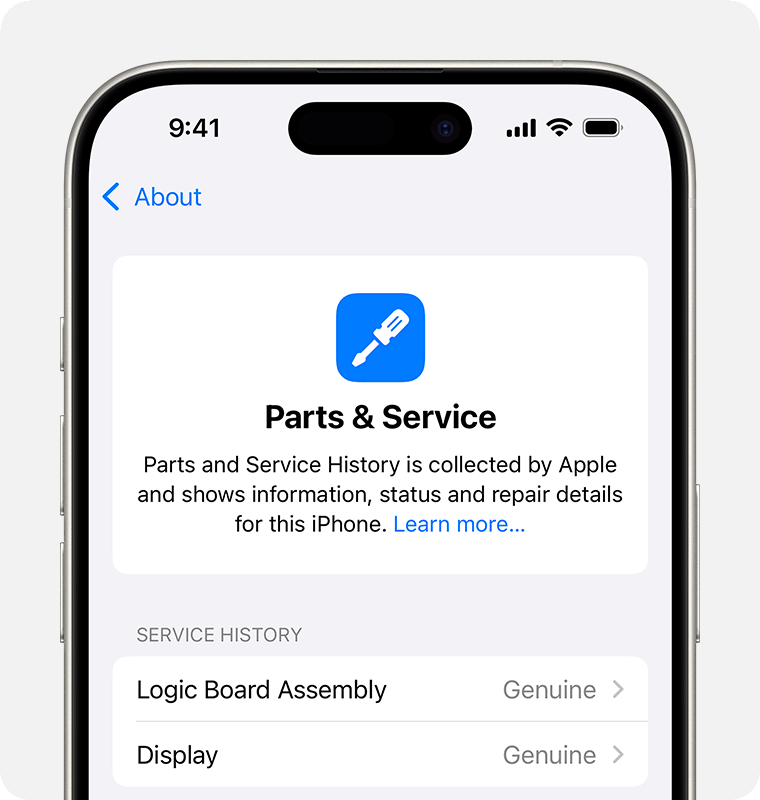
If your iPhone runs iOS 18 or later, Apple’s software can verify and pair genuine replacement parts.
Access Parts and Service History
Go to Settings → General → About → Parts & Service History. Tap Restart and Finish Repair and follow the prompts. The device will restart and register the new back glass.
Outcome: A successful calibration shows “Genuine Apple Part” and updates service history.
If the option does not appear, confirm your iOS version is 18 or higher, ensure the part is Apple-certified, and retry after a full charge.
Avoid Common Repair Mistakes
Even experienced technicians make errors. Watch for these pitfalls.
Overheating the Battery
The most frequent cause of post-repair failure. Heat only until the glass is hot to the touch, never scalding. Focus on edges, not the center.
Forcing Connectors
Never push a connector with full force. If it does not click, lift and realign, inspect for debris, and ensure correct orientation.
Mixing Up Screw Lengths
Using a 1.3 mm screw where a 0.9 mm is required can damage the logic board. Use a screw organizer with labeled compartments.
Skipping Pressure Curing
Without proper weight application, the adhesive may not bond evenly, leading to gaps and future separation.
When to Choose Professional Repair
DIY repair saves money but carries risks. Consider professional service if you lack specialized tools, the glass is severely fragmented, you feel uncomfortable working near the battery, or you want warranty coverage.
Professional providers such as uBreakiFix and Asurion offer same-day repair at over 700 locations, free diagnostics, a one-year limited warranty, and a low-price guarantee. They use authentic, Apple-approved parts and employ cross-trained technicians.
Final Checks and Maintenance Tips
After reassembly, verify everything works.
Power On and Test Features
Turn on the iPhone and check wireless charging, NFC (Apple Pay), camera function, and touch responsiveness. Monitor for unexpected shutdowns, which can signal battery stress.
Maintain Long-Term Durability
Avoid exposing the phone to extreme heat such as car dashboards. Use a protective case to prevent future cracks. Keep software updated to maintain repair calibration.
Recycle Old Parts Responsibly
Dispose of the broken back glass and adhesive at an R2 or e-Stewards certified recycler. These facilities handle electronic waste safely and ethically.
Frequently Asked Questions About iPhone 15 Back Glass Repair
Can I replace the iPhone 15 back glass without removing the battery?
Yes. Unlike older models, the iPhone 15 allows back glass replacement without removing the logic board or battery. You only need to disconnect the battery and wireless charging coil connectors before lifting the glass away.
How deep can I insert the opening pick on the right edge?
Do not insert the opening pick deeper than 4 mm along the right edge (volume button side). Deeper insertion risks cutting the wireless charging coil cable or damaging the Taptic Engine.
What temperature should I use to heat the back glass?
Heat the glass until it is hot to the touch, roughly 100 to 110°C with a heat gun or hair dryer. Avoid heating the center of the device where the battery sits, as excessive heat can cause the lithium-ion battery to swell or fail.
Do I need to calibrate the new back glass after installation?
If your device runs iOS 18 or later and you installed a genuine Apple part, calibration is recommended. Go to Settings → General → About → Parts & Service History and tap “Restart and Finish Repair” to complete the pairing process.
What happens if I mix up the screw lengths?
Using a longer screw in the wrong hole can pierce the logic board and cause permanent damage. The 7.7 mm screws go at the charging port, the 1.3 mm screws secure the lower connector cover, and the 0.9 mm screw secures the middle connector cover.
How long should I leave weights on the new back glass?
Leave stacked coins or weights in place for at least 30 minutes. The weights should be taller than the camera bump so pressure focuses on the edges rather than the elevated center of the device.
Key Takeaways for Repairing Your iPhone 15 Back Glass
Fixing the iPhone 15 back glass is a delicate but achievable task with the right knowledge. The most critical rules are maintaining the 4 mm depth limit on the right edge, using the correct screw lengths for each connector cover, and applying controlled heat only until the glass is hot to the touch. Proper pressure curing with weights taller than the camera bump ensures a durable, water-resistant bond.
Your next step is to gather all required tools and review each phase before beginning. If you feel uncertain at any point, a professional repair service with genuine parts and a warranty offers a reliable alternative.