
You just updated your iPhone to iOS 26 and noticed something different—a subtle shimmer, dynamic transparency, and interfaces that seem to react to your touch. That is Liquid Glass, Apple’s latest visual upgrade designed to make your device feel more alive. This new material responds in real time to movement, lighting, and content, turning static UI elements into fluid, glass-like surfaces across the Lock Screen, Control Center, apps, and more.
Turning on Liquid Glass is not a single toggle. It is built into the appearance settings and activates when you choose the right display mode. If you are wondering how to unlock this sleek new look, you are in the right place. In this guide, you will learn exactly how to enable Liquid Glass, which iPhones support it, and how to customize it for the best visual experience.
Check iPhone Compatibility First
Before enabling Liquid Glass, confirm your device supports iOS 26 and the feature fully.
Supported iPhone Models
- iPhone 11
- iPhone 12 series (mini, standard, Pro, Pro Max)
- iPhone 13 series (mini, standard, Pro, Pro Max)
- iPhone 14 series (standard, Plus, Pro, Pro Max)
- iPhone 15 series (standard, Plus, Pro, Pro Max)
- iPhone 16 series (if released before iOS 26)
Note: While iPhone 11 can run iOS 26 and Liquid Glass, performance may be slightly less smooth than on newer chips. For optimal responsiveness, use iPhone 12 or later.
How to Verify Your Model
- Open Settings.
- Tap General > About.
- Check the Model Name or Model Number.
If your iPhone is supported, proceed to enable the effect.
Enable Liquid Glass via Appearance Settings
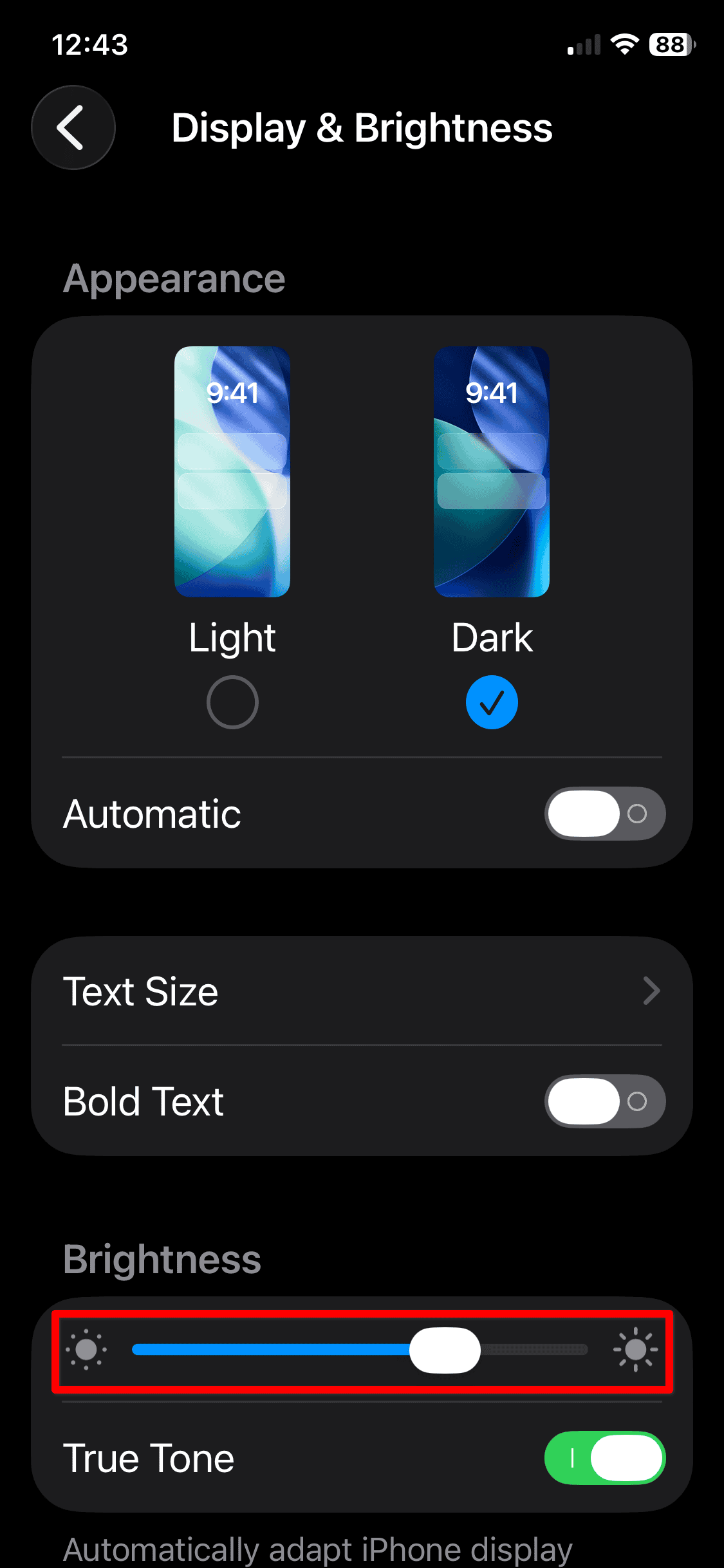
Liquid Glass is controlled through display appearance options, not a standalone switch. You must select a compatible theme to activate the effect.
Open Display and Brightness Settings
- Go to Settings on your iPhone.
- Tap Display & Brightness.
This menu controls how your screen looks across apps and system interfaces.
Select Appearance Mode
Under the Appearance section, tap Customise.
Here, you will see three core options that activate Liquid Glass:
Clear Light
- Applies a light-themed, translucent Liquid Glass layer.
- Best for bright environments or light wallpapers.
- Creates soft reflections with minimal contrast.
Clear Dark
- Uses a dark, see-through variant of Liquid Glass.
- Ideal for low-light use or dark wallpapers.
- Enhances depth with subtle specular highlights.
Auto
- Switches automatically between Clear Light and Clear Dark.
- Based on your current appearance setting.
- Recommended for most users since it keeps Liquid Glass active all day.
Pro Tip: Choose Auto to maintain the dynamic effect without manual switching.
Once selected, Liquid Glass instantly applies to buttons, switches, sliders, text, media controls, tab bars, and sidebars throughout the system.
Customize with the Tinted Glass Effect
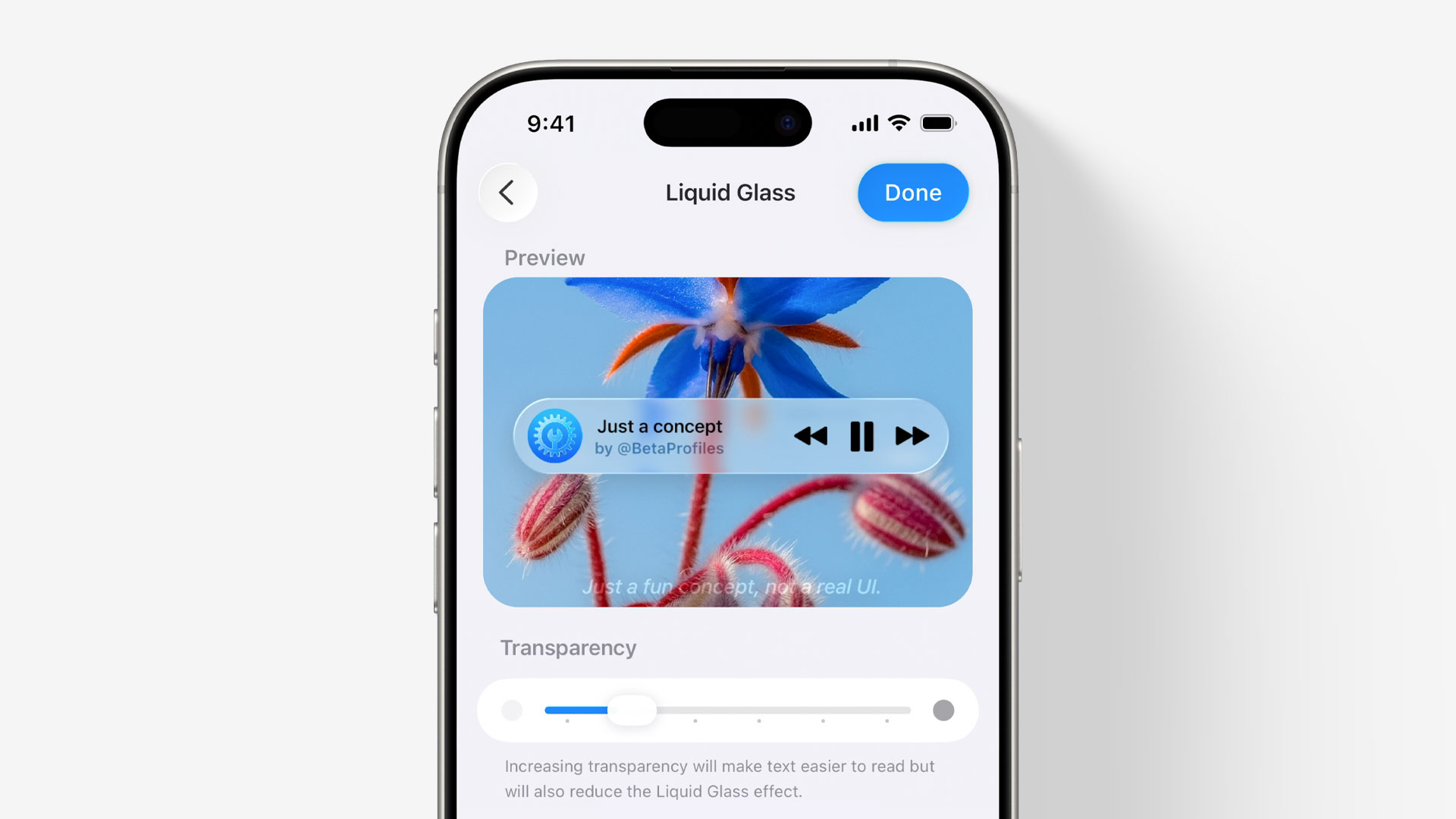
Want more personalization? Use the Tinted option to add a color-coordinated glass layer that matches your wallpaper.
Apply Tinted Liquid Glass
- In Display & Brightness > Appearance, tap Customise.
- After selecting Clear Light, Clear Dark, or Auto, tap Tinted.
- Adjust the Color Intensity slider to control how strong the tint appears.
The result is a cohesive interface where app icons and groups appear under a unified, colored glass surface, similar to looking through a real pane of tinted glass.
Warning: High tint levels may reduce icon visibility. Use moderate intensity for best usability.
Where Liquid Glass Appears on Your iPhone
After enabling it, you will notice the effect in key system areas.
Lock Screen and Home Screen
- Time and widgets sit behind a responsive glass layer.
- Tilting your iPhone reveals dynamic light reflections.
- App icons and folders have a subtle depth effect.
Control Center and Notifications
- Each control panel uses translucent glass.
- Sliders reflect ambient light as you adjust them.
- Notification banners use real-time specular highlights.
Widgets and System Menus
- Widgets blend into the wallpaper with semi-transparent edges.
- System menus like Wi-Fi and Bluetooth adopt the glass texture.
- Background content blurs dynamically behind the glass.
Troubleshooting: Liquid Glass Not Working
Follow these steps if the effect is not appearing.
No Glass Effect After Enabling
- Force restart your iPhone:
– Press and release Volume Up, then Volume Down.
– Hold the Side Button until the Apple logo appears. - Check for updates:
– Go to Settings > General > Software Update.
– Install any pending patches.
Only Partial Effect Visible
- Some third-party apps may not support Liquid Glass yet.
- Native Apple apps like Messages, Music, and Settings show the full effect.
- Wait for app developers to update their interfaces for iOS 26.
Performance Issues
- Liquid Glass uses GPU-intensive real-time rendering.
- On older devices, disable Auto mode if animations lag.
- Try using Clear Light or Clear Dark for smoother performance.
Expert Note: If your iPhone feels sluggish, go to Settings > Accessibility > Motion and turn on Reduce Motion. This disables some Liquid Glass effects but improves responsiveness.
Maximize the Liquid Glass Experience

Get the most out of the feature with these optimization tips.
Use Dynamic Wallpapers
- Static images limit visual impact.
- Choose Live or motion wallpapers to trigger richer reflections.
Keep Auto-Lock Short
- Set Auto-Lock to 30 seconds for frequent screen unlocks.
- This lets you enjoy the Lock Screen animation more often.
Enable Raise to Wake
- Go to Settings > Display & Brightness > Raise to Wake.
- Lifting your phone activates the screen with a smooth glass shimmer.
Does Liquid Glass Drain Battery?

Yes, but only slightly.
Because Liquid Glass relies on real-time light simulation, motion tracking via the gyroscope, and GPU-powered transparency rendering, it increases background graphics processing. However, Apple optimized it to minimize impact.
Estimated Battery Impact
- Light use on iPhone 14 or newer: minimal noticeable drain.
- Heavy use on iPhone 11: moderate drain.
- With Reduce Motion enabled: very low impact.
Recommendation: Use Auto mode and enable Reduce Motion only if needed. Most users will not notice significant battery loss.
Frequently Asked Questions About Liquid Glass on iOS 26
Do I need iOS 26 to use Liquid Glass?
Yes. Liquid Glass is exclusive to iOS 26 and cannot be enabled on earlier versions of iOS.
Why does my iPhone 11 lag with Liquid Glass?
iPhone 11 supports iOS 26, but its older chip may struggle with real-time rendering. Switching to Clear Light or Clear Dark, or enabling Reduce Motion, can improve performance.
Can I use Liquid Glass with any wallpaper?
Yes. However, dynamic or Live wallpapers produce richer reflections and a more noticeable effect than static images.
Will third-party apps support Liquid Glass?
Eventually. Many developers are still updating their apps for iOS 26. Native Apple apps currently show the full effect.
How do I turn off Liquid Glass if I do not like it?
Go to Settings > Display & Brightness > Appearance and switch back to the standard Light or Dark mode without selecting a Clear option.
Key Takeaways for Enabling Liquid Glass on iOS 26
Liquid Glass is a standout design evolution that makes your iPhone feel more immersive and responsive. Turning it on takes less than a minute through Settings > Display & Brightness > Appearance > Customise. Choosing Auto gives you the best balance of dynamic visuals and battery efficiency, while the Tinted option adds a personalized color overlay.
If you have a supported iPhone, open Settings today and explore the new appearance options. Your interface will never look the same once the glass comes alive.